
 Counter-Strike 2
 Valorant
 Dota 2
 League of Legends
A good CS2 launch options list should not look like someone copied a dusty CS:GO forum post and added “2026†to the title.
The best setup is usually short, clear, and easy to test. You want commands that actually work in CS2, not random launch commands that sound powerful but do nothing useful. Whether you call them CS2 launch options, Steam launch options, launch commands, launch parameters, startup commands, or start options, the rule is the same: if a command does not solve a real problem, it does not belong in your launch options.
This guide gives you clean CS2 startup commands for FPS, explains what each one does, and shows which old commands you should avoid.
Quick Answer: The Best CS2 Launch Options
For most players, the best CS2 launch options are:
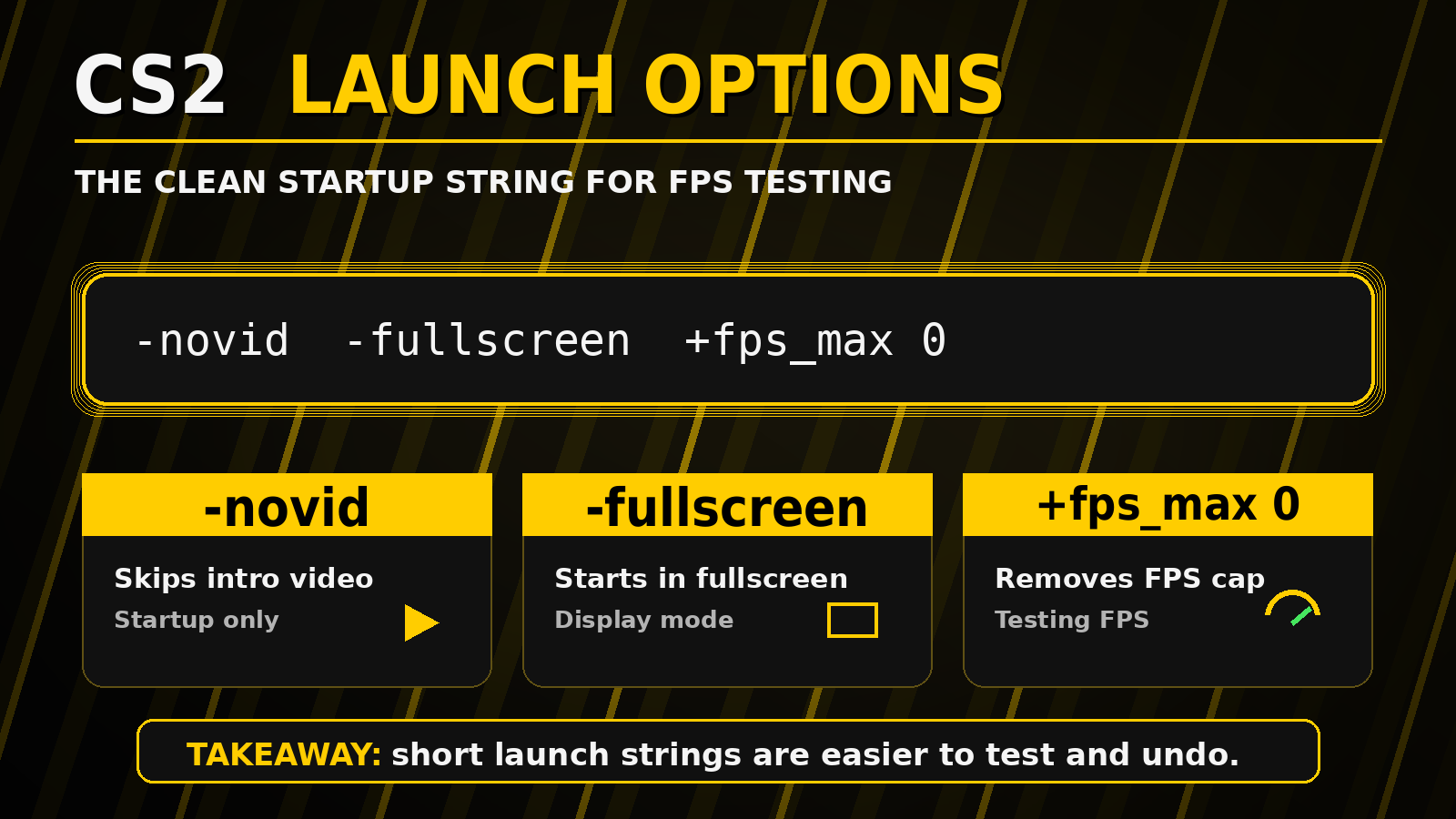
-novid -fullscreen +fps_max 0This is the cleanest starter setup if you want CS2 launch options for FPS, a simple FPS max test, or a safe copy-paste line before tuning anything else.
| Command | What It Does | Why It Helps |
|---|---|---|
-novid |
Skips the intro video | Gets you to the menu faster |
-fullscreen |
Starts CS2 in fullscreen | Helps the game open in the right display mode |
+fps_max 0 |
Removes the FPS cap | Lets you test your highest possible FPS |
The main FPS command here is +fps_max 0.
It does not magically create more frames. It removes the frame limit, so your PC can show what it is capable of. If your system can push more FPS, you will see it. If your PC is limited by your CPU, GPU, settings, cooling, or background apps, this command will not fix that by itself.
What CS2 Launch Options Actually Do
CS2 launch options are startup instructions. Steam sends these launch settings to the game before CS2 opens, which is why players also call them CS2 startup commands or Steam launch options for CS2.
That means they can tell the game how to start. They can skip the intro video, start the game in fullscreen, force a resolution, set an FPS cap, test Vulkan, or load a config file.
They are not the same as video settings. They also are not magic performance sauce. Sadly, there is no launch option called +make_my_pc_a_4090.
Launch options can help with:
- Starting CS2 faster
- Opening the game in fullscreen
- Setting a specific resolution
- Testing uncapped FPS
- Setting a stable FPS cap
- Testing Vulkan
- Loading an autoexec file
Launch options usually do not fix:
- Weak hardware
- Bad cooling
- Outdated drivers
- Heavy graphics settings
- Background apps using your CPU
- Poor frame pacing
- Network lag
- Stutters caused by other system problems
This is why the best launch options for CS2 are usually simple. If you paste twenty commands and the game feels worse, you will not know which command caused the problem.
Use launch options like tools. Add one because you know what it does. Remove it if it does not help.
How To Add CS2 Launch Options In Steam
You only need to set your CS2 launch options once.
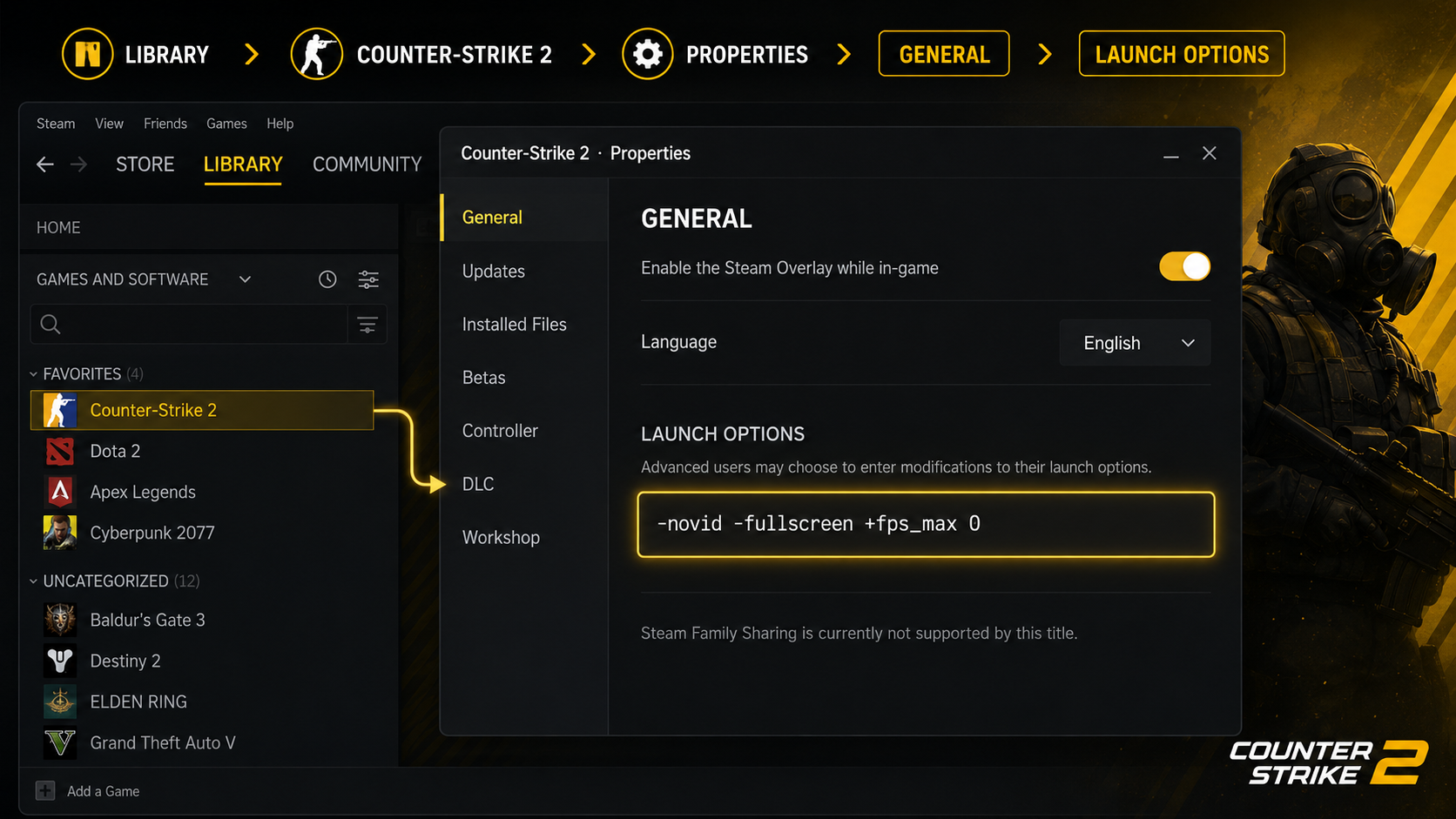
- Open Steam.
- Go to your Library.
- Right click Counter-Strike 2.
- Click Properties.
- Stay on the General tab.
- Find the Launch Options box.
- Paste your command line.
- Close the window.
- Restart CS2.
Use spaces between each command.
Correct:
-novid -fullscreen +fps_max 0Wrong:
-novid-fullscreen+fps_max0If the spacing is wrong, CS2 may ignore the command. Keep the line clean and simple.
Best CS2 Launch Options For Most Players
For most players, this is the best starting point:
-novid -fullscreen +fps_max 0This gives you a clean launch and removes the FPS cap for testing.
Here is the logic.
-novid skips the intro video. It saves a small amount of time when you start CS2. It does not improve in-match FPS, so do not treat it like a performance command.
-fullscreen starts CS2 in fullscreen. This is useful if the game keeps opening in the wrong mode or if you want a stable display setup.
+fps_max 0 removes the FPS limit. This is useful when you want to see the highest FPS your system can produce.
You should start with this setup because it is easy to understand and easy to undo. If something feels wrong, you can remove one command and test again.
That is much better than copying a giant launch string full of commands that nobody in the lobby can explain.
Best CS2 Launch Options For Stable FPS
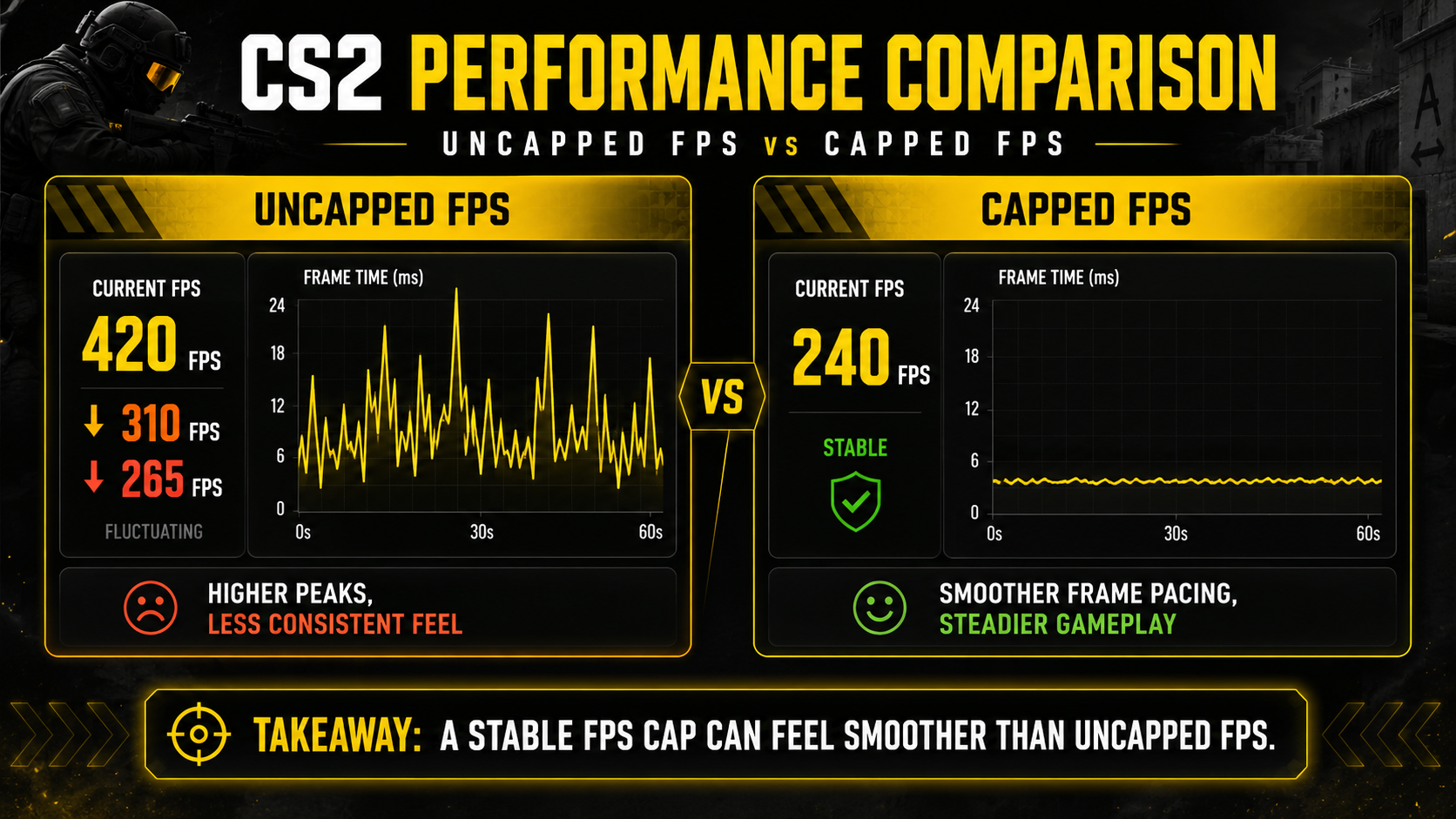
Uncapped FPS is useful for testing, but it is not always the best choice for normal play.
If your FPS jumps around too much, a stable cap can feel smoother than an uncapped setup. This is especially true if your GPU is running at full load, your fans are getting loud, or your frame times feel uneven.
Try this:
-novid -fullscreen +fps_max 240Change 240 to a number your PC can hold.
| Monitor Refresh Rate | Good Starting FPS Cap |
|---|---|
| 60 Hz | +fps_max 120 |
| 144 Hz | +fps_max 180 or +fps_max 240 |
| 240 Hz | +fps_max 300 or +fps_max 400 |
| 360 Hz | +fps_max 400 or higher if stable |
These are starting points, not strict rules.
The best FPS cap is not always the biggest number. The best cap is the highest number your PC can hold during real gameplay.
If your game shows 400 FPS in spawn but drops to 190 FPS during fights, a 400 FPS cap is not very useful. A lower cap may feel smoother because your system is not constantly jumping between high and low frame rates.
Best CS2 Launch Options For Low-End PCs
If you are on a low-end PC, lowering the resolution can help more than most startup commands. That is why the best CS2 launch options for low end PC setups usually include resolution testing before risky old commands.
Try this:
-novid -fullscreen -w 1280 -h 960 +fps_max 0This starts CS2 in fullscreen at 1280×960 and removes the FPS cap.
You can also test:
-novid -fullscreen -w 1280 -h 720 +fps_max 0or:
-novid -fullscreen -w 1024 -h 768 +fps_max 0The -w command sets the width. The -h command sets the height.
Lower resolution can improve FPS if your GPU is the main limit. This is because your PC has fewer pixels to render. That can make a real difference on older graphics cards, budget PCs, or laptops.
Be careful with wording, though. Do not call 1280×960 “native†unless your monitor actually has that native resolution.
Native resolution means the real panel resolution of your monitor.
| Monitor Type | Native Resolution |
|---|---|
| Standard 1080p monitor | 1920×1080 |
| Standard 1440p monitor | 2560×1440 |
| Standard 4K monitor | 3840×2160 |
So “native 1080p†only makes sense if the monitor is actually 1920×1080. Native does not automatically mean 1080p.
If you use 1280×960 on a 1920×1080 monitor, that is a lower chosen resolution. It may be stretched, black-barred, or scaled depending on your GPU and display settings.
That detail matters because bad wording can confuse readers. CS2 settings are already messy enough without adding fake vocabulary soup.
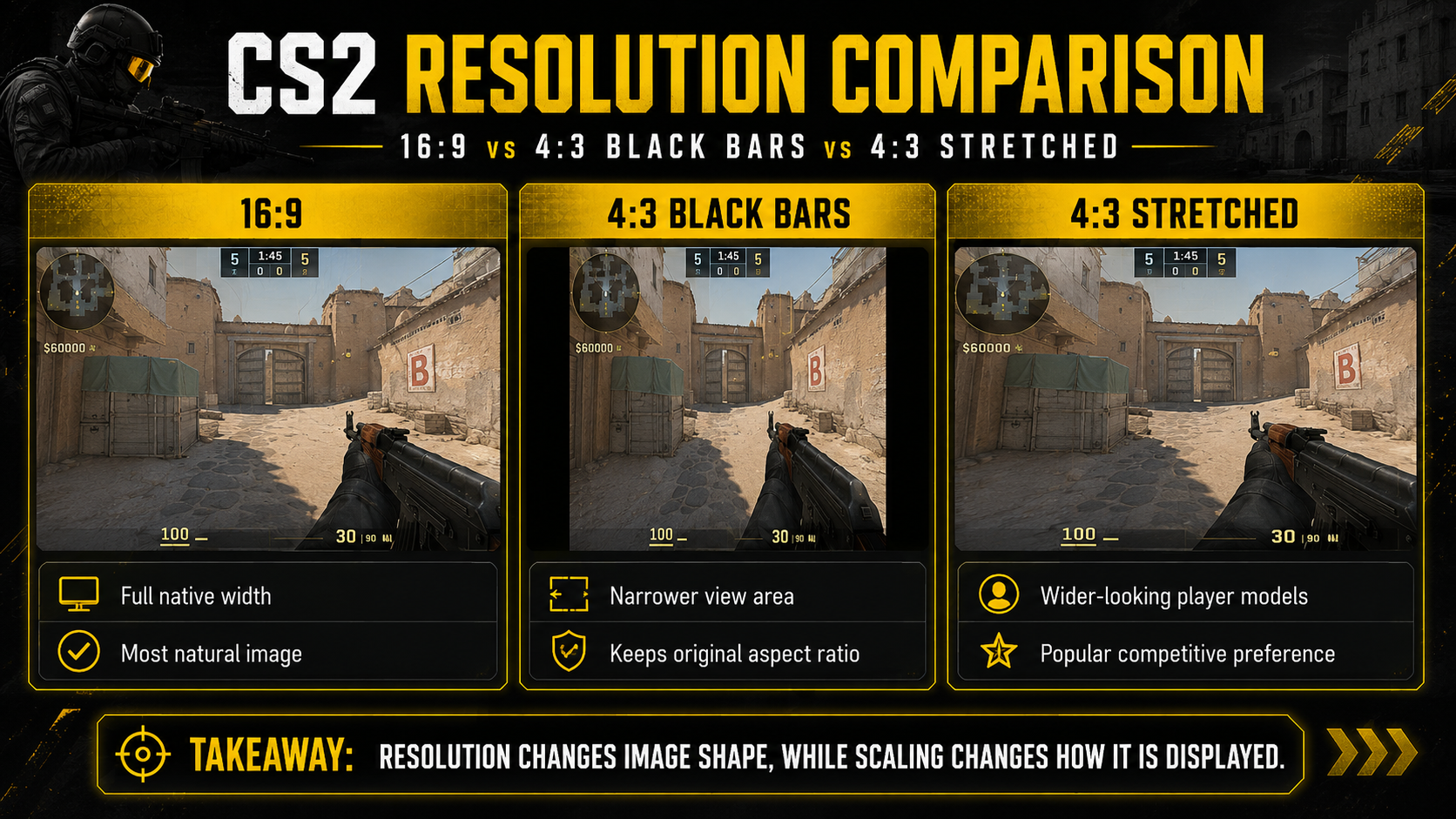
Best CS2 Launch Options For 4:3 Stretched
Many CS2 players use 4:3 because it changes how the game looks and can make targets appear wider when stretched. It can also help FPS if you choose a lower resolution.
A common 4:3 setup is:
-novid -fullscreen -w 1280 -h 960 +fps_max 0This forces CS2 to start at 1280×960.
But this command does not always force stretched scaling by itself. It sets the game resolution. Your GPU or monitor decides how that image is displayed.
To get 4:3 stretched, you may need to adjust scaling in your GPU control panel.
The basic logic is simple:
- CS2 sets the resolution.
- Your GPU handles the scaling.
- Your monitor shows the final image.
If you see black bars, your scaling is likely set to preserve aspect ratio. If you want stretched, look for a fullscreen scaling option in your GPU settings.
Use launch options only if you want CS2 to start in that resolution every time. If the in-game video menu works fine for you, it is okay to set the resolution there instead.
Best CS2 Launch Options For Refresh Rate
If CS2 opens at the wrong refresh rate, use -freq.
For a 144 Hz monitor:
-novid -fullscreen -freq 144For a 240 Hz monitor:
-novid -fullscreen -freq 240For a 360 Hz monitor:
-novid -fullscreen -freq 360Use your real monitor refresh rate. Do not type 360 just because it looks professional. Your 144 Hz monitor will not suddenly grow a secret esports panel.
You should only use this command if CS2 is not starting at the correct refresh rate. If the game already uses the right refresh rate, you do not need it.
Also check Windows display settings. If Windows is set to 60 Hz, CS2 may not feel right no matter what launch options you use. Your GPU control panel can also affect refresh rate and scaling.
A good check looks like this:
- Set the correct refresh rate in Windows.
- Set the correct refresh rate in your GPU software if needed.
- Open CS2.
- Check CS2 video settings.
- Add
-freqonly if the game still starts wrong.
Do not use -refresh unless you have verified that it works for your setup. For a clean CS2 guide, -freq is the safer command to mention.
Best CS2 Launch Options For Vulkan Testing
You can test Vulkan with this:
-novid -fullscreen -vulkan +fps_max 0The -vulkan command forces CS2 to use the Vulkan renderer.
This is not something every player should use forever. It is a test command.
Vulkan may run better on some systems and worse on others. It depends on your GPU, driver, operating system, and the current CS2 build.
Test it properly before keeping it.
A fair test looks like this:
- Run CS2 without
-vulkan. - Test the same map and same settings.
- Note FPS and smoothness.
- Add
-vulkan. - Restart CS2.
- Test the same area again.
- Remove
-vulkanif it feels worse.
Do not judge only by the main menu. Test in real gameplay or a repeatable practice setup. Smokes, fights, movement, and utility can all affect performance.
If Vulkan improves smoothness on your PC, keep it. If it causes stutters, crashes, missing settings, or lower FPS, remove it.
Should You Use -high In CS2?
-high is a real Source 2 launch option. It sets the game process to high priority.
That does not mean everyone should use it.
Try it only as a test:
-novid -fullscreen -high +fps_max 0Then test without it:
-novid -fullscreen +fps_max 0If you do not see or feel a clear improvement, leave it out.
High priority can sometimes help a game get more CPU attention. It can also make background tasks behave worse. On some systems, that may cause strange behavior instead of better performance.
This is why -high should not be part of a universal “best launch options†list. It is a test command, not a guaranteed FPS boost.
Keep it only if it helps your PC. Do not keep it just because someone online said it was mandatory. The internet also once told everyone to add heap commands like they were seasoning fries.
Useful CS2 Launch Commands
Here are the CS2 launch commands worth knowing.
| Command | What It Does | Should You Use It? |
|---|---|---|
-novid |
Skips the intro video | Yes, if you want faster startup |
-fullscreen |
Starts CS2 in fullscreen | Yes, for a clean display setup |
+fps_max 0 |
Removes the FPS cap | Yes, for FPS testing |
+fps_max <number> |
Sets a specific FPS cap | Yes, for stable gameplay |
-w <width> |
Sets startup width | Only if you need a forced resolution |
-h <height> |
Sets startup height | Only if you need a forced resolution |
-freq <Hz> |
Sets refresh rate | Only if CS2 starts at the wrong refresh rate |
-vulkan |
Forces Vulkan renderer | Test only |
-high |
Sets high process priority | Test only |
+fps_max_ui <number> |
Sets menu FPS cap | Optional |
+cl_showfps 1 |
Shows FPS counter | Testing only |
+exec autoexec.cfg |
Loads a config file | Only if the file exists |
The best CS2 launch commands are not the longest ones. They are the ones that match your actual goal.
If your goal is smoother gameplay, test an FPS cap.
If your goal is more FPS on weak hardware, lower the resolution.
If your goal is display consistency, use fullscreen and refresh rate commands.
If your goal is to look busy, paste 18 commands from an old forum post. But please do not.
Best CS2 Startup Commands For Testing FPS
If you want CS2 startup commands for FPS testing, use this:
-novid -fullscreen +fps_max 0 +cl_showfps 1This removes the FPS cap and shows your FPS counter.
Once you are done testing, you can remove +cl_showfps 1.
The FPS counter is useful, but it does not improve performance. It only shows information.
For a stable FPS test, use:
-novid -fullscreen +fps_max 240 +cl_showfps 1Change 240 to the cap you want to test.
When testing, do not stand in the main menu and call it a day. Menu FPS does not tell you how CS2 performs in real gameplay.
Test in places where FPS actually matters:
- Deathmatch
- Practice maps with bots
- Smoke-heavy areas
- Retake situations
- Full matches
- Busy parts of maps
Watch for drops during fights, utility, movement, and scoreboard use. Average FPS is helpful, but smoothness matters too.
If your game feels choppy even with high FPS, the problem may be frame pacing, heat, drivers, or settings. A launch command cannot fix every issue.
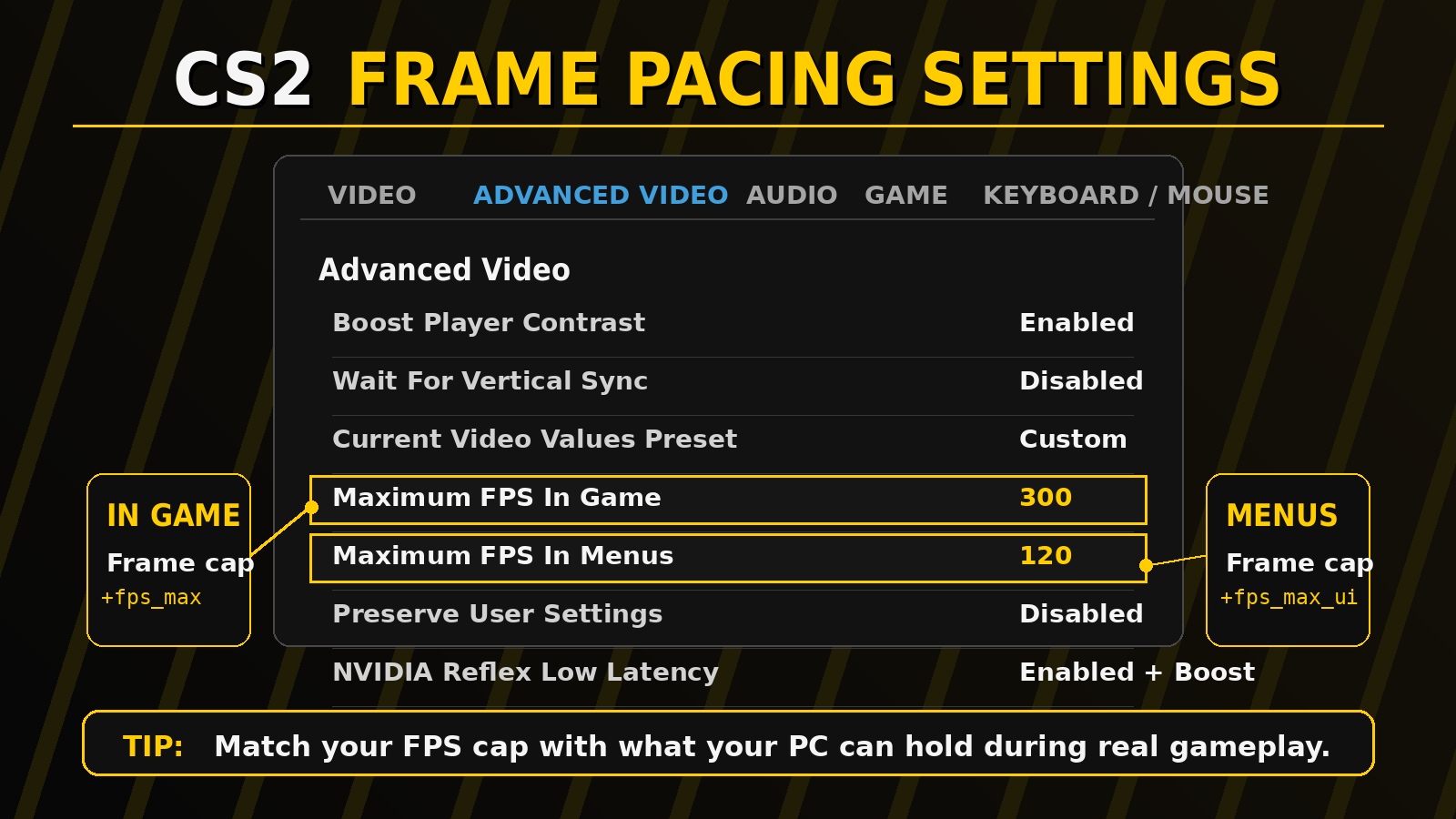
The CS2 Frame Pacing Settings You Should Know
CS2 has real in-game frame pacing options. This means you do not need to control every FPS setting through Steam launch options.
The key settings are in:
Settings > Video > Advanced Video > Frame PacingThe important options are:
| Setting | What It Controls |
|---|---|
| Maximum FPS In Game | Controls your in-game FPS cap |
| Maximum FPS In Menus | Controls your menu FPS cap |
| NVIDIA G-Sync Row | May appear depending on your GPU and renderer |
The “Maximum FPS In Game†setting controls the same idea as fps_max.
The “Maximum FPS In Menus†setting controls menu FPS. This is useful because your PC does not need to run at full power while you are sitting in the menu.
A practical setup is:
-novid -fullscreen +fps_max 240 +fps_max_ui 120This caps gameplay at 240 FPS and menus at 120 FPS.
That can reduce heat and fan noise while still keeping gameplay smooth.
If you prefer using the in-game sliders, that is fine too. Launch options are not the only correct way to set FPS caps.
Commands You Should Not Use In A CS2 FPS Setup
A strong CS2 guide should not only tell you what to use. It should also tell you what to avoid.
Many old launch option lists still include commands that are outdated, unclear, or not useful for CS2 FPS.
| Command Or Claim | Use It? | Why |
|---|---|---|
-nojoy |
No | CS2 already ignores joystick input by default |
-threads <number> |
No | Do not force it without current CS2 proof |
+mat_queue_mode 2 |
No | Old Source-era advice |
+cl_forcepreload 1 |
No | Not a clean current CS2 FPS recommendation |
-d3d9ex |
No | DirectX 9-era CS:GO command |
-heapsize |
No | Old memory tweak advice |
-processheap |
No | Old memory tweak advice |
-tickrate 128 |
No for FPS | Not an FPS command |
+cl_cmdrate 128 |
No for FPS | Network command, not an FPS launch option |
+cl_updaterate 128 |
No for FPS | Network command, not an FPS launch option |
| “Native 1080p†| Avoid | Native means the monitor’s real panel resolution |
These commands are common because people copy old guides from old guides that copied even older guides. That is how you end up with config archaeology.
The safe rule is simple: if you cannot explain what a command does in CS2, do not use it.
Why -nojoy Should Not Be In Your Launch Options
-nojoy is one of the most copied commands from older Counter-Strike guides.
It does not belong in a modern CS2 FPS setup.
CS2 ignores joystick input by default. That means you do not need a launch option to disable it. The old reason for using -nojoy no longer applies in the same way.
Use this:
-novid -fullscreen +fps_max 0Not this:
-novid -fullscreen -nojoy +fps_max 0This is a small cleanup, but it matters. A clean launch string is easier to test, easier to explain, and less likely to cause confusion.
Why +fps_max 0 Is Not Always Best For Playing
+fps_max 0 is great for testing maximum FPS.
It is not always the best choice for normal matches.
When FPS is uncapped, your PC tries to render as many frames as possible. That can increase heat, fan noise, and power use. It can also make your FPS swing more if your system cannot hold a high number.
A cap may feel better if:
- Your FPS jumps a lot
- Your GPU runs too hot
- Your laptop loses performance over time
- Your fans get loud
- Your game feels uneven
- You get strong drops during fights
Start with uncapped FPS to see your maximum. Then test a cap that your PC can actually hold.
For example, if your FPS often drops near 230 during fights, try:
-novid -fullscreen +fps_max 240If that feels smooth, test higher.
If it feels worse, test lower.
Do not chase the highest number just because it looks nice. A stable number you can hold is often better than a big number that falls apart the moment a smoke lands.
How To Pick The Right FPS Cap
The right FPS cap depends on your monitor and your real gameplay performance.
Do not pick a cap based only on your best-case FPS. Pick it based on what your PC can hold during actual CS2 gameplay.
Use this method:
- Start with
+fps_max 0. - Play a few real rounds.
- Watch your FPS during fights and utility.
- Notice your common low points.
- Set a cap near a number your PC can hold.
- Play again and judge smoothness.
A simple example:
Your PC hits 390 FPS in quiet areas, but drops to 230 FPS during fights. A 400 FPS cap may feel uneven. A 240 FPS cap may feel more stable.
Another example:
Your PC stays above 400 FPS most of the time and you use a 240 Hz monitor. A 300 or 400 FPS cap may feel good if your frame pacing stays clean.
There is no universal perfect number. Your PC, monitor, settings, and maps all matter.
The goal is not to win the FPS counter screenshot contest. The goal is to make the game feel smooth when someone wide swings you and your crosshair suddenly needs to do grown-up work.
Should You Use An Autoexec With Launch Options?
You can use this command:
+exec autoexec.cfgThis tells CS2 to load your autoexec file when the game starts.
This is useful if you have a clean config file with binds, crosshair settings, viewmodel settings, or other personal settings.
But only use it if the file exists and you know what is inside it.
A clean launch string might look like this:
-novid -fullscreen +fps_max 240 +exec autoexec.cfgA messy setup looks like this:
-novid -fullscreen -nojoy -threads 8 -heapsize 1572864 +mat_queue_mode 2 +cl_forcepreload 1 +exec mystery_config.cfgThat second one is not better. It is just longer and scarier.
Before using an autoexec, ask yourself:
- Do I know what every line does?
- Is every command still useful in CS2?
- Can I remove it if something breaks?
- Does this config solve a real problem?
If the answer is no, clean it up before you load it every time CS2 starts.
What To Change Before Adding More Commands
If you want better CS2 performance, launch options are only part of the setup.
Before adding more commands, check the basics.
Check Your Resolution
Lower resolution can improve FPS if your GPU is struggling. If you play on a low-end PC, this can matter more than any launch string.
You should also choose the right resolution for your monitor, role, and FPS target. A lower number can help performance, but it may also reduce sharpness.
Check Your Refresh Rate
Make sure Windows is using your monitor’s highest refresh rate. A 144 Hz monitor set to 60 Hz will not feel like 144 Hz, no matter how beautiful your launch options look.
Check Your FPS Cap
A stable cap can make the game feel smoother. Use +fps_max 0 to test, then choose a cap you can hold.
Check Your Console Commands
Some console commands are useful for testing, but they should not live in your launch options forever. Keep the commands that solve a real problem.
Check Background Apps
Browsers, recording software, launchers, overlays, and update tools can use CPU or GPU power. Close what you do not need.
Check Temperatures
If your CPU or GPU gets too hot, performance can drop. This is common on laptops and dusty desktops.
A launch command cannot fix a PC that is cooking itself like a tiny space heater.
Quick CS2 Launch Option Presets
Use these presets based on your goal.
Clean Default
-novid -fullscreenUse this if you want a simple setup without changing your FPS cap.
Uncapped FPS Test
-novid -fullscreen +fps_max 0Use this to test your maximum FPS.
Stable Gameplay Cap
-novid -fullscreen +fps_max 240Change 240 to a number your PC can hold.
Lower Resolution FPS Test
-novid -fullscreen -w 1280 -h 960 +fps_max 0Use this if you want to test 4:3 or reduce GPU load.
Correct Refresh Rate
-novid -fullscreen -freq 144Change 144 to your real monitor refresh rate.
Vulkan Test
-novid -fullscreen -vulkan +fps_max 0Use this only for testing. Remove it if performance or stability gets worse.
Menu FPS Control
-novid -fullscreen +fps_max 240 +fps_max_ui 120Use this if you want a gameplay cap and a lower menu cap.
Autoexec Setup
-novid -fullscreen +fps_max 240 +exec autoexec.cfgUse this only if your autoexec file exists and is clean.
Troubleshooting CS2 Launch Options
If something goes wrong, do not add more commands. Go simpler.
CS2 Opens In The Wrong Resolution
Remove your resolution commands first.
Then set the resolution inside CS2’s video menu.
If it still resets, try:
-fullscreen -w 1280 -h 960Make sure you are not using several display commands that conflict with each other.
CS2 Opens At The Wrong Refresh Rate
Check Windows display settings first.
Then try:
-freq 144Replace 144 with your monitor’s real refresh rate.
CS2 Feels Choppy With High FPS
Try a stable cap.
+fps_max 240If that helps, your issue may be frame pacing instead of raw FPS.
Vulkan Makes CS2 Worse
Remove this:
-vulkanNot every system likes Vulkan. If your game feels worse, use the default renderer.
Your FPS Counter Will Not Go Away
Remove this:
+cl_showfps 1That command is only for testing.
You Added Too Many Commands
Go back to the clean setup:
-novid -fullscreen +fps_max 0Then add one command at a time.
This is the easiest way to find what actually helps.
Final Thoughts
The best CS2 launch options are simple, useful, and easy to test.
Start with:
-novid -fullscreen +fps_max 0Then adjust based on your real problem. Use a stable cap if uncapped FPS feels uneven. Use resolution commands if you need more FPS on weaker hardware. Use Vulkan or -high only as tests.
A clean launch string beats a long command salad every time.
FAQs
What Are The Best CS2 Launch Options For FPS?
The best starting setup is:
-novid -fullscreen +fps_max 0This skips the intro video, starts CS2 in fullscreen, and removes the FPS cap. Use it to test your maximum FPS.
For normal play, a capped setup may feel smoother:
-novid -fullscreen +fps_max 240Change the number based on what your PC can hold.
Do CS2 Launch Options Really Increase FPS?
Some can help, but most do not directly increase FPS.
+fps_max 0 removes the FPS cap. Lower resolution commands like -w 1280 -h 960 can help if your GPU is the limit. Vulkan can help on some systems, but it can also perform worse.
Commands like -novid do not increase in-match FPS. They only change startup behavior.
Is +fps_max 0 Good For CS2?
Yes, but mainly for testing.
+fps_max 0 removes the FPS cap, so you can see your maximum possible FPS. For regular matches, a stable cap may feel better if your FPS jumps around too much.
What FPS Cap Should I Use In CS2?
Use a number your PC can hold during real gameplay.
If you have a 144 Hz monitor, try:
+fps_max 240If you have a 240 Hz monitor, try:
+fps_max 300or:
+fps_max 400If your FPS drops below the cap often, lower the cap and test again.
Should I Use -novid In CS2?
Yes, if you want to skip the intro video.
It is safe and simple. Just remember that it does not improve match FPS. It only helps CS2 start a bit faster.
Should I Use -fullscreen In CS2?
Yes, if you want CS2 to start in fullscreen every time.
This can help if the game opens in the wrong display mode. If you already set fullscreen in the game and it works fine, you may not need it.
Should I Use -high In CS2?
Test it, but do not treat it as required.
-high sets the game process to high priority. It may help some systems, but it can also cause problems with background tasks. If you do not notice a clear improvement, remove it.
Should I Use -vulkan In CS2?
Use -vulkan only as a test.
Some PCs may perform better with Vulkan. Others may feel worse or less stable. Test the same map, same settings, and same situations before deciding.
Should I Use -nojoy In CS2?
No.
CS2 already ignores joystick input by default, so -nojoy is not needed in a modern CS2 FPS launch setup.
Should I Use -threads In CS2?
No, not as a standard FPS recommendation.
It is old advice from older Counter-Strike guides. Unless you have current CS2-specific proof that it helps your system, leave it out.
What Does -w 1280 -h 960 Do In CS2?
It starts CS2 at 1280×960 resolution.
This is often used for 4:3 setups. It can also help FPS if your GPU struggles at higher resolutions.
It does not always force stretched scaling by itself. You may need to change scaling in your GPU control panel.
Is 1280×960 Native Resolution?
Only if your monitor’s real panel resolution is 1280×960.
Most modern monitors are 1920×1080, 2560×1440, or 3840×2160. If you use 1280×960 on one of those monitors, it is a lower chosen resolution, not native.
What Is The Best CS2 Launch Option For Low-End PCs?
Try this:
-novid -fullscreen -w 1280 -h 960 +fps_max 0The lower resolution can reduce GPU load. If the game feels unstable with uncapped FPS, replace +fps_max 0 with a stable cap your PC can hold.
Can Launch Options Fix CS2 Stuttering?
Sometimes they can help, but they are not a full fix.
If CS2 stutters, also check graphics settings, drivers, background apps, temperatures, frame pacing settings, and your FPS cap. Stuttering can come from many causes, so one startup command may not solve it.
What Is The Safest CS2 Launch Option Setup?
The safest clean setup is:
-novid -fullscreenIt skips the intro and starts the game in fullscreen without changing FPS limits or render settings.
If you want to test FPS, use:
-novid -fullscreen +fps_max 0Written by

Muhib Nadeem
11 published articles
CS2 writer and BO5 editor covering Counter-Strike guides, rankings, skins, and performance fixes.
Recommended posts
August 9, 2026
CS2 Bunny Hop Command: How to Enable Bhop
Enable auto-bhop on a CS2 server you control, adjust optional practice settings, use a matchmaking-safe wheel bind, and restore every value correctly.
August 9, 2026
Best CS2 Settings for FPS and Lower Input Lag
Choose CS2 settings for your hardware and display, separate lowest latency from tear-free VRR, preserve competitive visibility, and benchmark every change.
August 9, 2026
CS2 Viewmodel Settings: Every Command, FOV and Pro Config
Configure your CS2 viewmodel with current commands, defaults, practical presets and dated pro snapshots—without confusing weapon FOV with camera FOV or FPS.