
 Counter-Strike 2
 Valorant
 Dota 2
 League of Legends
You swing a corner, land the shot on your screen, and somehow the enemy still sends you back to the lobby. Your ping looks normal. Your FPS looks fine. CS2 just feels like it is running through a toaster with Wi-Fi.
That is where net jitter comes in.
If you want to know how to fix net jitter in CS2, do not start by copying random commands. First, prove that the problem is really network jitter or CS2 network jitter. Then fix your connection path, check the right CS2 settings, and avoid old advice that no longer applies.
What Net Jitter Means In CS2
Net jitter means your connection is not steady. Players may call it CS2 net jitter, network jitter, jitter lag, or simply CS2 jitter, but the problem is the same: packet timing keeps changing.
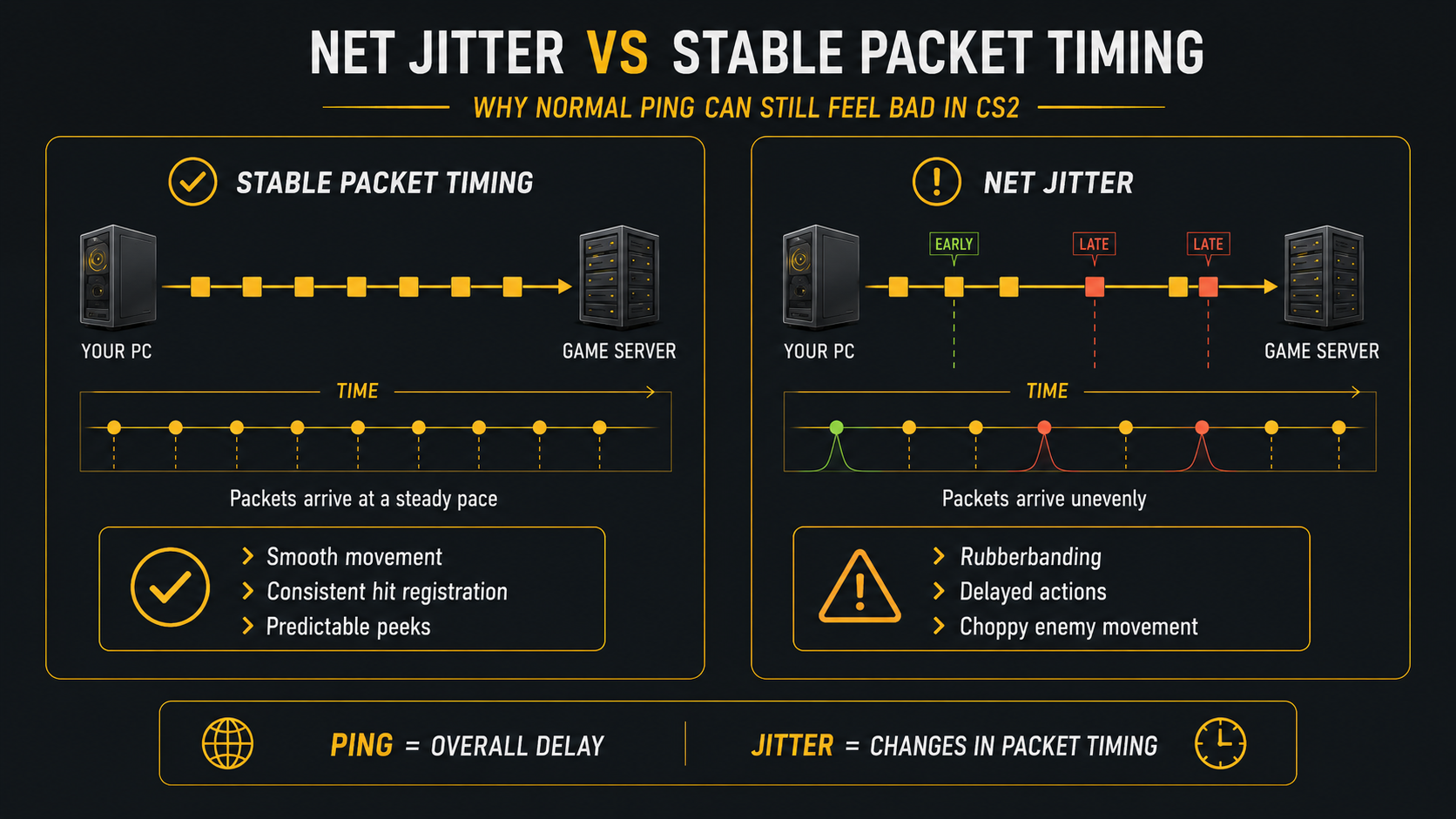
Ping shows how long data takes to travel between your PC and the server. Jitter shows how much that timing keeps changing. A stable 45 ms ping can feel better than a 25 ms ping that keeps jumping around like it had too much coffee.
CS2 needs a smooth flow of data. Your PC sends your movement and actions to the server. The server sends back player positions, shots, damage, and round information. If packets arrive late, arrive out of order, or get dropped, you can run into packet loss, rubberbanding, and delayed actions.
You may notice:
- Enemy movement looks choppy.
- Your character rubberbands.
- Shots feel delayed.
- Peeks feel unfair.
- The game stutters even when FPS is stable.
This is why CS2 net jitter is not the same as high ping. High ping is delay. Jitter is uneven delay.
That difference matters because the fix is different. You do not reduce network jitter by lowering shadows or turning off anti-aliasing. That may help FPS, but it will not fix unstable packet timing.
Check CS2 Telemetry Before Changing Anything
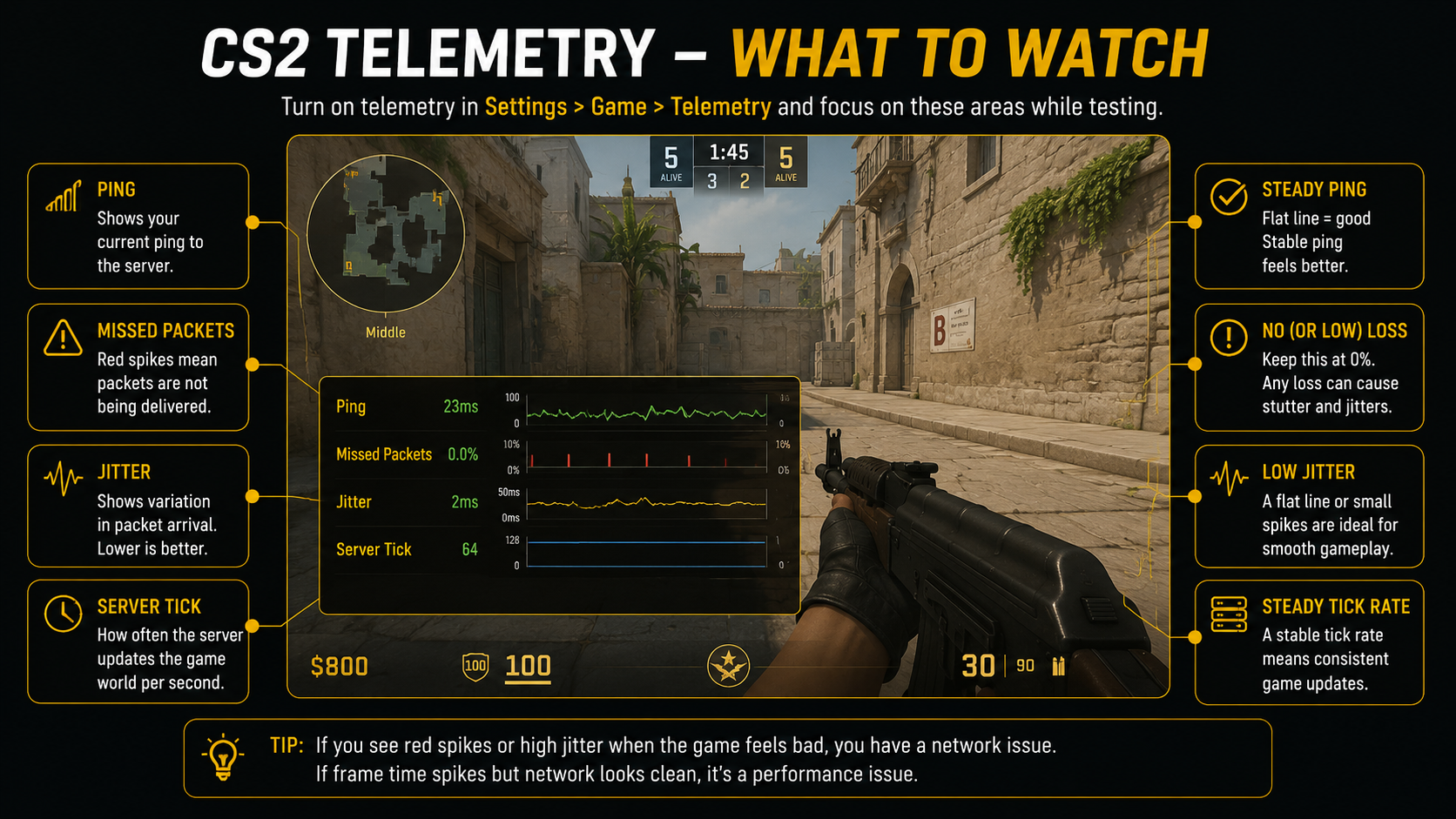
Your first step is to turn on CS2 telemetry.
This is the part many players skip. They jump straight into router settings, launch options, and possibly a small spiritual ritual. That usually wastes time.
Go to:
Settings > Game > Telemetry
For testing, turn these settings on:
| Telemetry Setting | What To Use While Testing | Why It Helps |
|---|---|---|
| Show Ping | Always | Lets you see if your ping is steady or jumping. |
| Show Network Problems | Always | Shows missed ticks caused by loss or jitter. |
| Detailed Network Quality Display | Always | Shows clearer network quality information. |
| Network Quality Graph | Always | Helps you spot jitter, loss, or packet delivery issues. |
| Show Frame Time And FPS | Always | Helps you separate network problems from PC stutter. |
You can also use these console commands while testing:
cl_hud_telemetry_ping_show 2
cl_hud_telemetry_net_misdelivery_show 2
cl_hud_telemetry_net_quality_graph_show 2
cl_hud_telemetry_net_detailed 2
cl_hud_telemetry_frametime_show 2
The value 2 means the item is always shown. Use this while troubleshooting. After you are done, you can switch some items back to “If conditions are poor†so your HUD does not look like a networking exam.
The key is simple. If CS2 shows missed ticks, jitter, packet loss, or network misdelivery when the game feels bad, you likely have a network problem. If only frame time spikes, you likely have a performance problem.
Tell Network Jitter Apart From FPS Stutter
Network jitter and FPS stutter can feel similar. Both can make the game feel rough. Both can make fights feel unfair. Both can make you question your entire setup.
But they are not the same issue.
Use this table to read what CS2 is telling you:
| What You See | Likely Problem | What To Fix First |
|---|---|---|
| Network warnings appear when the game hitches | Connection instability | Router, Wi-Fi, Ethernet, bandwidth load, buffering |
| Frame time spikes when the game hitches | PC performance stutter | Graphics settings, CPU load, GPU load, background apps |
| Ping is high but steady | Distance or route issue | Server choice, matchmaking ping, ISP route |
| Ping jumps often | Unstable connection | Wi-Fi, router congestion, packet loss, bufferbloat |
This step saves you from fixing the wrong thing.
If the problem is FPS drops, reducing CS2 network jitter settings will not help much. If your network graph is messy, changing texture quality will not fix the server connection. You need to follow the evidence, not the loudest comment under a Steam thread.
Use Ethernet Instead Of Wi-Fi
If you play CS2 on Wi-Fi, test a wired Ethernet connection first.
This is not glamorous advice, but it is one of the most useful steps. Wi-Fi can be fine for browsing, streaming, and casual games. CS2 is less forgiving because it needs steady packet timing.
Wi-Fi can be affected by:
- Distance from the router
- Thick walls
- Other wireless devices
- Crowded channels
- Weak signal
- Router placement
Your speed test can still look good while CS2 feels bad. Speed tests often measure download and upload speed, not how steady every packet is during a real match. That is why CS2 upload jitter, download jitter, or ping jitter can still appear even when your headline speed looks fine.
Use a direct Ethernet cable from your PC to your router. Then test CS2 again with telemetry on. If the network graph becomes cleaner, you found the problem.
Avoid powerline adapters while testing. They can work well in some homes, but they can also be unstable depending on wiring and electrical noise. For a clean test, direct Ethernet is better.
Stop Background Traffic
Your connection may be fast, but it can still get messy when other traffic is active.
Before testing again, close anything that may use the network:
- Game downloads
- Windows updates
- Cloud backups
- Streaming apps
- Torrent clients
- Browser tabs playing video
- Other devices uploading or downloading heavily
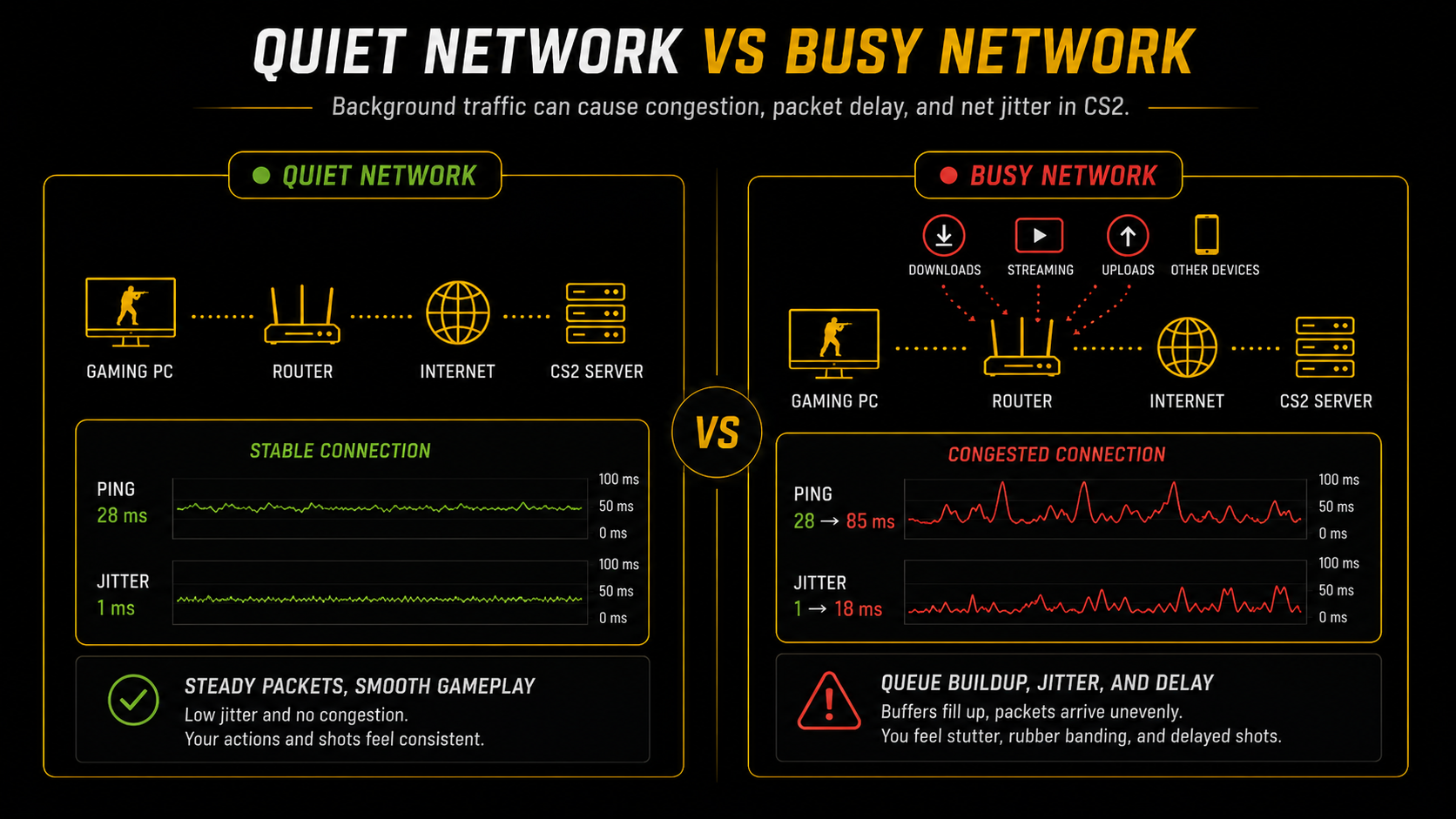
Upload traffic is especially important. If someone is uploading large files, your router may start queueing packets. That can increase delay and create jitter. CS2 does not care that your internet package sounds impressive on paper. It cares whether packets arrive on time.
Test the game when your network is quiet. Then compare it to a busy network. If CS2 only feels bad when other traffic is active, your issue may be congestion or bufferbloat.
Restart Your Router And Check The Basics
A boring fix is still a fix.
Restart your router and modem. Then test again. Routers can become unstable over time, especially if they have been running for weeks without a break.
Also check your hardware:
- Try another Ethernet cable.
- Try another router port.
- Update your router firmware.
- Update your network adapter driver.
- Make sure your cable is not loose.
Do these one at a time when possible. If you change five things at once, you may fix the problem but never know what worked.
A damaged cable can cause packet issues. A bad router port can do the same. These are easy to miss because your internet may still work. It just may not work cleanly enough for a tight CS2 match.
Use CS2 Buffering Carefully
CS2 has a real setting for this problem:
Buffering To Smooth Over Packet Loss
You can find it in the CS2 settings menu. The console command behind it is:
cl_net_buffer_ticksThis setting can help when your connection has packet loss or jitter. It adds a small buffer so the game has more room to handle delayed network data.
But there is a tradeoff.
More buffering can make the game smoother, but it can also increase effective ping. That means you should not set it to the highest value just because it sounds safer. More buffer is not more skill. Sadly, there is still no setting for that.
Use this approach:
| Setting | Command | When To Use It |
|---|---|---|
| None | cl_net_buffer_ticks 0 |
Best default if your connection is stable. |
| 1 Packet | cl_net_buffer_ticks 1 |
Good first test if telemetry shows jitter or loss. |
| 2 Packets | cl_net_buffer_ticks 2 |
Use only if the connection is still unstable. |
Start with None. If CS2 telemetry shows network jitter or packet loss during hitches, try 1 Packet.
Only use 2 Packets if the problem is still severe. It may smooth things out, but you are paying with extra delay.
Do Not Use Old CS:GO Network Advice
A lot of old guides still recommend commands that do not belong in a modern CS2 jitter fix.
Be careful with advice built around:
net_graph 1
cq_netgraph
cl_interp
cl_interp_ratio
cl_cmdrate
cl_updaterate
Do not present those as proper CS2 fixes unless you have confirmed they exist and work in the current game.
CS2 uses the Telemetry menu for network information. For interpolation, you should use the in-game buffering setting instead of manually changing old interp values.
Do not add old CS:GO network commands to your autoexec.cfg just because they appear in an old post. A bad config can make troubleshooting harder, especially when you forget what you added six months ago.
This is important for accuracy. You do not want an article that tells players to run dead commands and then stare at the console like it owes them rent.
The safer guidance is:
Use CS2 telemetry to diagnose the problem. Use Buffering To Smooth Over Packet Loss if the telemetry proves you need it. Avoid old CS:GO command lists unless they are verified for CS2.
Set Max Acceptable Game Traffic Bandwidth Correctly
CS2 includes this setting:
Max Acceptable Game Traffic Bandwidth
For most normal broadband connections, keep it on:
Unrestricted
The related command is:
rate 786432Do not call this a secret fix. It is just the value used for the Unrestricted option.
Lowering this setting can help in some cases if your router or connection is dropping packets under load. But setting it too low can also make things worse because the server may not be able to send enough data smoothly when a lot is happening.
Use this simple rule:
| Situation | Best Choice |
|---|---|
| Your connection is stable | Keep it on Unrestricted. |
| Your telemetry shows packet issues on a limited connection | Test one lower option. |
| Lowering it makes gameplay feel delayed | Go back to Unrestricted. |
Do not lower bandwidth just because a random guide says so. CS2 is not asking for less data for fun. It needs enough network room to keep the match updated.
Lower Max Acceptable Matchmaking Ping
This setting does not directly fix jitter, but it can help you avoid bad server choices.
Look for:
Max Acceptable Matchmaking Ping
The related command is:
mm_dedicated_search_maxpingThis setting tells CS2 what ping range you prefer when searching for official matches. A lower value can help you get closer servers, which often means a better baseline connection.
Try a value that makes sense for your location. For many players, something like 50, 70, or 90 ms is a reasonable test.
Do not set it so low that matchmaking becomes painful. If CS2 cannot find a suitable server, you may wait longer or still end up on the next best option.
This setting is best for reducing bad server selection. It will not fix a weak Wi-Fi signal or a router that panics every time someone opens YouTube.
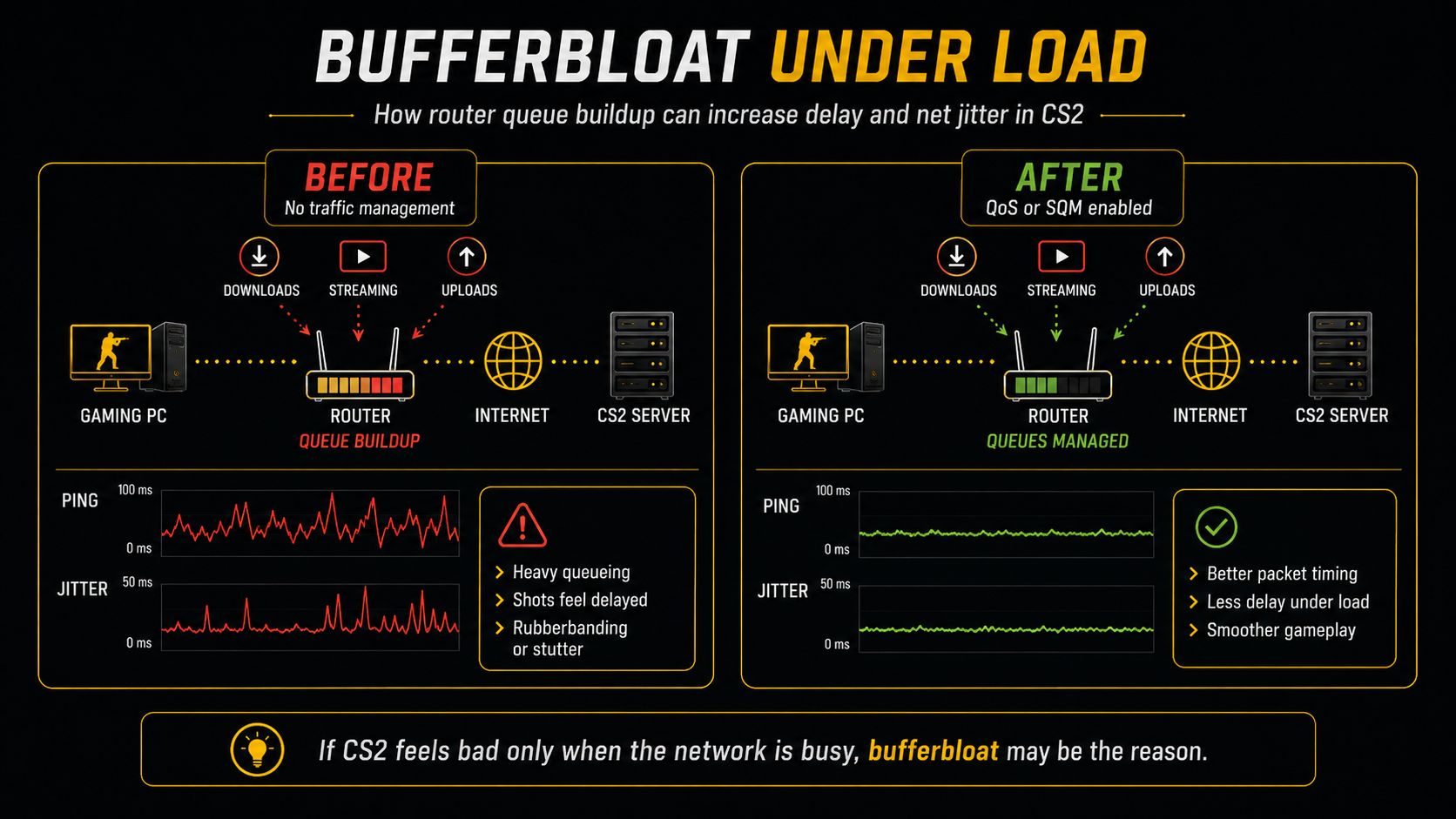
Fix Bufferbloat If Jitter Happens Under Load
Bufferbloat is a common reason CS2 feels bad when your network is busy.
It happens when your router holds too much traffic in a queue. Instead of dropping or managing packets well, it lets them wait. That waiting adds delay. When the delay keeps changing, you feel jitter.
You may have bufferbloat if CS2 feels fine when nobody else is using the internet, but becomes rough when someone starts streaming, uploading, or downloading.
Look in your router settings for features like:
- QoS
- SQM
- CAKE
- fq_codel
QoS means Quality of Service. It tries to give important traffic higher priority. SQM is often better for fighting bufferbloat when it is available.
The best method is to test carefully. Turn on one setting, play CS2 with telemetry visible, and compare the result. Do not enable every router feature at once. Some router QoS options are useful. Some are basically decoration with a settings page.
Test Different Servers And Times
Sometimes the problem is not inside your home.
Your router may be fine. Your cable may be fine. Your PC may be fine. The issue may be the route between your ISP and a CS2 server.
Signs of a route or server problem include:
- Jitter only happens on some servers.
- The issue is worse at certain times.
- Other games feel normal.
- Friends in another region do not have the same issue.
- Your local network tests look clean.
In that case, gather proof instead of guessing. Take screenshots of CS2 telemetry. Note the server region and time. Test again later. If the issue keeps happening on the same route, you may need to contact your ISP or wait for routing to improve.
Do not blame sub-tick for every bad duel. Online feel can be affected by ping, packet loss, server load, and routing. If telemetry shows network instability, fix that first.
A VPN can be tested as a routing check, but do not treat it as a guaranteed fix. It may improve a bad route, or it may add more latency. Test it with telemetry before trusting it.
Best CS2 Settings To Reduce Network Jitter
Here is the clean setup to use while troubleshooting.
| Purpose | Setting Or Command | Recommended Use |
|---|---|---|
| Show ping | cl_hud_telemetry_ping_show 2 |
Use while testing. |
| Show network problems | cl_hud_telemetry_net_misdelivery_show 2 |
Use while testing. |
| Show network graph | cl_hud_telemetry_net_quality_graph_show 2 |
Use while testing. |
| Show detailed network quality | cl_hud_telemetry_net_detailed 2 |
Use while testing. |
| Show frame time and FPS | cl_hud_telemetry_frametime_show 2 |
Use to rule out PC stutter. |
| Add network buffering | cl_net_buffer_ticks 0, 1, or 2 |
Start at 0, then test 1 if needed. |
| Use normal broadband bandwidth | rate 786432 |
This is the Unrestricted option. |
| Prefer closer servers | mm_dedicated_search_maxping |
Lower it to avoid high-ping matches. |
This gives you a safe CS2 jitter fix and CS2 net jitter fix path without fake commands or outdated CS:GO advice.
Quick Fix Order
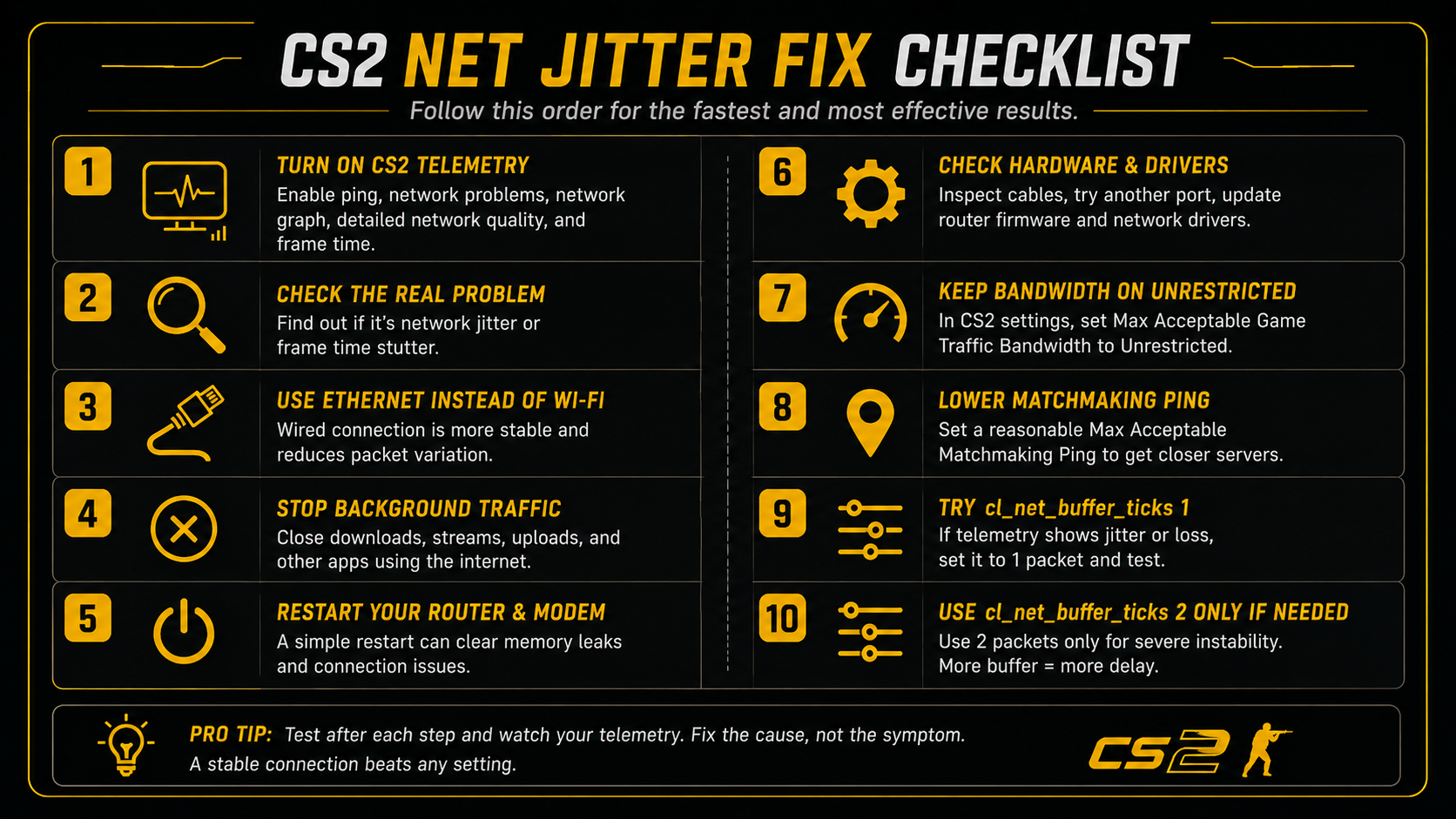
Follow this order if you want the fastest clean test:
- Turn on CS2 telemetry.
- Check whether the issue is network jitter or frame time stutter.
- Use Ethernet instead of Wi-Fi.
- Stop background traffic.
- Restart your router and modem.
- Check cables, router ports, firmware, and drivers.
- Keep game traffic bandwidth on Unrestricted.
- Lower matchmaking ping if CS2 keeps choosing distant servers.
- Try
cl_net_buffer_ticks 1if telemetry shows jitter or loss. - Use
cl_net_buffer_ticks 2only for severe instability.
This order keeps you from hiding the real issue. Buffering can help, but the best fix is still a stable connection.
Conclusion
The best way to reduce network jitter in CS2 is to stop guessing.
Turn on telemetry, check what is actually going wrong, and fix the connection before changing advanced settings. Use Ethernet, clear background traffic, check your router, and only add CS2 buffering when the game shows real network problems.
If the telemetry is clean but the game still feels rough, look at frame time instead. CS2 can be dramatic, but at least make it show you the receipts.
FAQs
What Is Net Jitter In CS2?
Net jitter in CS2 is uneven packet timing between your PC and the game server. Your ping may look normal, but packets can still arrive late or unevenly. That can cause stutter, rubberbanding, delayed actions, or strange enemy movement.
How Do I Check Net Jitter In CS2?
Use the Telemetry settings in CS2. Turn on ping, network problems, the network quality graph, detailed network quality, and frame time. If network warnings appear when the game feels bad, you likely have a connection issue.
What Is The Best CS2 Setting For Network Jitter?
The main setting is Buffering To Smooth Over Packet Loss. Start with None if your connection is stable. Try 1 Packet if telemetry shows jitter or packet loss. Use 2 Packets only when the connection is very unstable.
Should I Set cl_net_buffer_ticks To 2?
Not by default. cl_net_buffer_ticks 2 can smooth a rough connection, but it also adds more delay. Try cl_net_buffer_ticks 1 first if CS2 telemetry shows network problems.
Does High FPS Fix CS2 Net Jitter?
No. High FPS can make the game feel smoother, but it does not fix packet timing. If telemetry shows frame time spikes, fix performance. If telemetry shows network problems, fix your connection.
Does Wi-Fi Cause CS2 Jitter?
Wi-Fi can cause jitter because signal strength, interference, distance, and other devices can affect packet timing. Test direct Ethernet before changing advanced CS2 settings.
Should I Lower The Rate Setting In CS2?
Most players should keep Max Acceptable Game Traffic Bandwidth on Unrestricted, which uses rate 786432. Lower it only if your connection is limited and CS2 telemetry shows packet issues.
Can A VPN Fix CS2 Network Jitter?
A VPN can sometimes improve a bad route, but it can also add latency or more jitter. Treat it as a test, not a guaranteed fix. Use CS2 telemetry to compare before and after.
Written by

Muhib Nadeem
11 published articles
CS2 writer and BO5 editor covering Counter-Strike guides, rankings, skins, and performance fixes.
Recommended posts
August 9, 2026
CS2 Bunny Hop Command: How to Enable Bhop
Enable auto-bhop on a CS2 server you control, adjust optional practice settings, use a matchmaking-safe wheel bind, and restore every value correctly.
August 9, 2026
Best CS2 Settings for FPS and Lower Input Lag
Choose CS2 settings for your hardware and display, separate lowest latency from tear-free VRR, preserve competitive visibility, and benchmark every change.
August 9, 2026
CS2 Viewmodel Settings: Every Command, FOV and Pro Config
Configure your CS2 viewmodel with current commands, defaults, practical presets and dated pro snapshots—without confusing weapon FOV with camera FOV or FPS.