
 Counter-Strike 2
 Valorant
 Dota 2
 League of Legends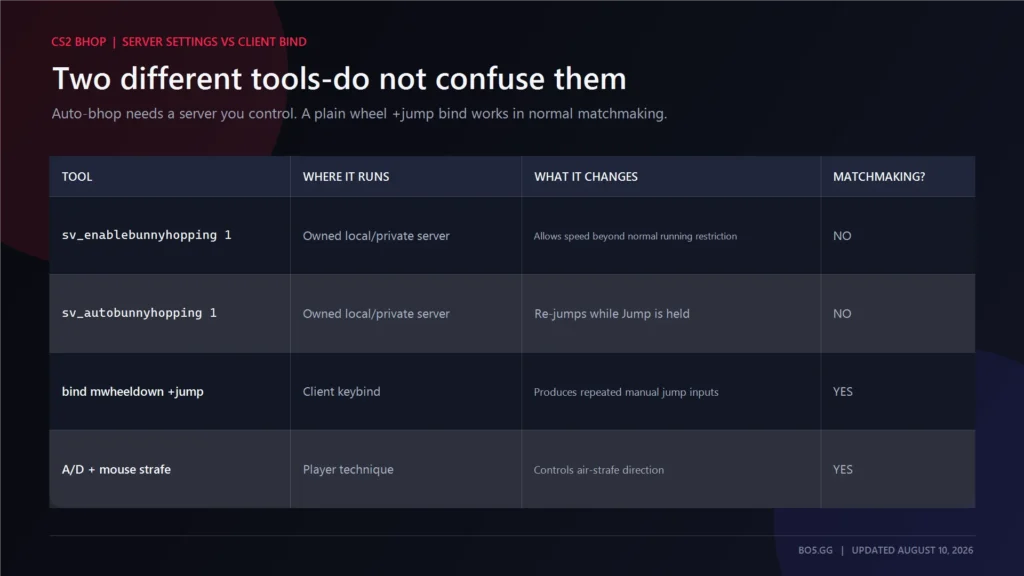
CS2 bunny hopping uses two separate systems. Server settings control auto-bhop practice, while a normal jump bind works in real matches.
Mixing them together can make a command block ineffective. It can also create the false impression that private-server settings work in matchmaking.
Answer: On a local, offline, or private CS2 server you control, enable bunny hopping with sv_enablebunnyhopping 1 and sv_autobunnyhopping 1. The first allows speed above the normal running limit; the second automatically jumps again while Jump is held. These are server-controlled settings. The matchmaking-safe option is a separate mouse-wheel +jump bind.
Key Takeaways
- The smallest auto-bhop setup is: cfg
sv_enablebunnyhopping 1 sv_autobunnyhopping 1 - These
sv_settings only work on a local or private server you control. - A plain mouse-wheel
+jumpbind is a normal client bind and works in Valve matchmaking. - Do not use external scripts, software or hardware macros, injected tools, or automated movement features.
sv_enablebunnyhopping 1
sv_autobunnyhopping 1
The CS2 Bhop Commands
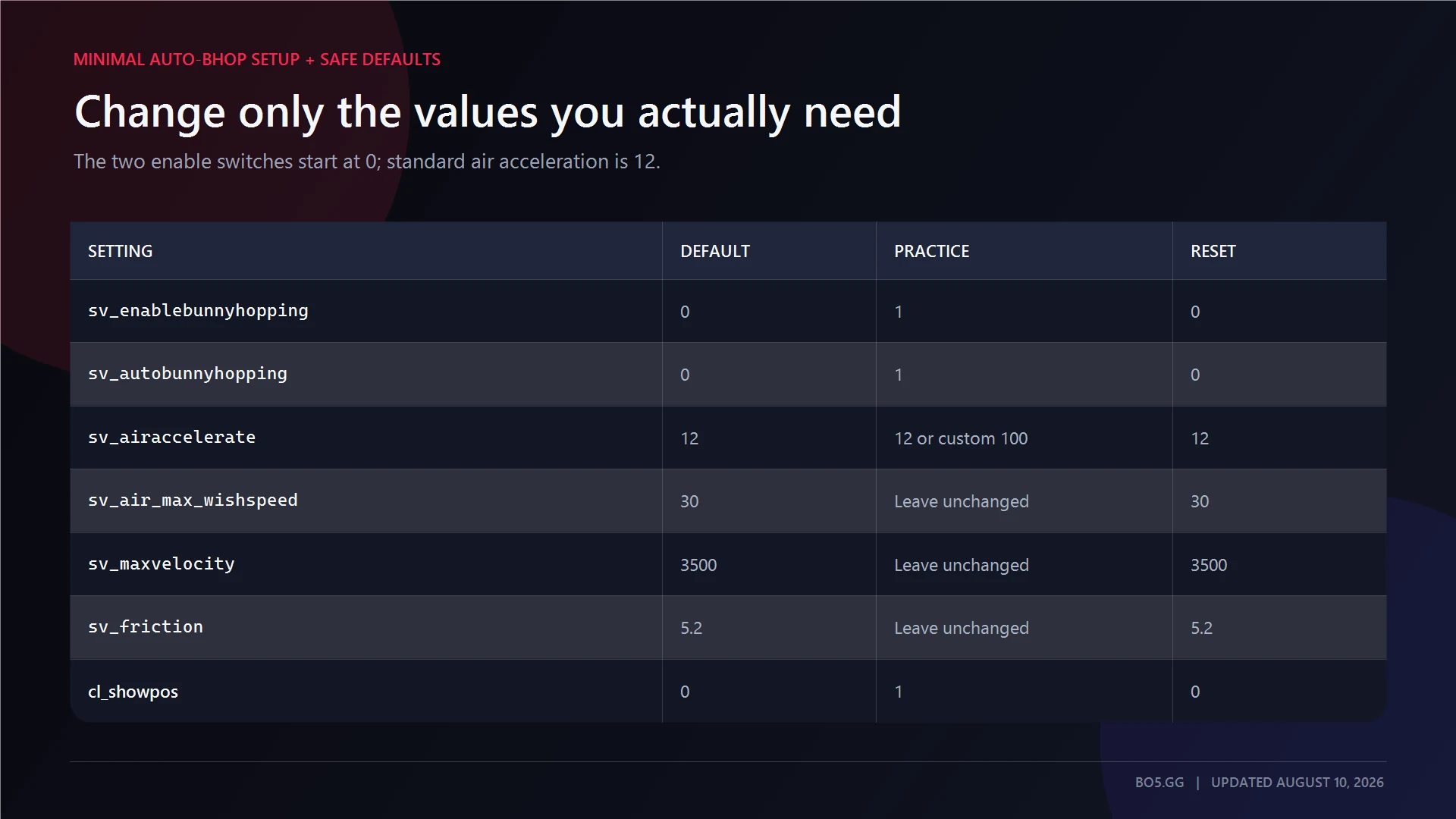
Minimal auto-bhop setup
Load a local map, an offline game with bots, or a private server you administer. Then enter:
sv_enablebunnyhopping 1
sv_autobunnyhopping 1The commands have different jobs:
| Server setting | What it changes |
|---|---|
sv_enablebunnyhopping 1 |
Allows speed to exceed the normal running-speed restriction while hopping |
sv_autobunnyhopping 1 |
Automatically jumps again when you land while holding Jump |
Using only sv_autobunnyhopping 1 gives you automatic re-jumps, but the normal speed restriction can remain.
Using only sv_enablebunnyhopping 1 removes that restriction, but you must still time each jump manually.
Where sv_cheats 1 fits
The two bhop values are controlled by the server. They cannot override settings on Valve matchmaking servers or community servers operated by somebody else.
sv_cheats 1 is the server switch used for cheat-protected practice commands and diagnostics. It is not a matchmaking bypass.
If your owned local session rejects the bhop values, try:
sv_cheats 1
sv_enablebunnyhopping 1
sv_autobunnyhopping 1
Do not assume that enabling cheats gives you control over an external server. The server operator still controls replicated movement settings.
Match-like air-control preset
Use the standard air-acceleration value when you want the turning response to feel familiar:
sv_enablebunnyhopping 1
sv_autobunnyhopping 1
sv_airaccelerate 12
This is useful for practising air-strafing without making aerial control much stronger than normal CS2.
It is not identical to matchmaking movement. Auto-bhop and the higher speed allowance are still enabled.
Easier practice preset
A higher air-acceleration value makes it easier to redirect yourself while airborne:
sv_enablebunnyhopping 1
sv_autobunnyhopping 1
sv_airaccelerate 100
100 is a custom practice value, not the standard CS2 default. It gives beginners more control without moving immediately to the extreme settings used by some movement servers.
Values such as 1000 or 2000 create substantially different physics. Use them only when reproducing a specific server or movement mode.
Show your velocity
Use cl_showpos to display movement information while testing:
sv_cheats 1
cl_showpos 1
This is a cheat-protected diagnostic command. It belongs in local or private practice, not in the matchmaking-safe bind section.
Turn the display off before disabling cheats:
cl_showpos 0
sv_cheats 0
Command reference
| Command | Purpose | Current default | Suggested practice value | Reset value |
|---|---|---|---|---|
sv_enablebunnyhopping |
Allows speed beyond the normal running limit | 0 |
1 |
0 |
sv_autobunnyhopping |
Re-jumps while Jump is held | 0 |
1 |
0 |
sv_airaccelerate |
Controls airborne acceleration and turning response | 12 |
12 or custom 100 |
12 |
sv_air_max_wishspeed |
Limits part of the air-acceleration calculation | 30 |
Leave unchanged | 30 |
sv_maxvelocity |
Sets the per-axis ballistic velocity ceiling | 3500 |
Leave unchanged | 3500 |
sv_friction |
Controls ground and world friction | 5.2 |
Leave unchanged | 5.2 |
sv_jump_spam_penalty_time |
Controls the penalty for overly frequent jump inputs | 0.015625 |
Leave unchanged | 0.015625 |
cl_showpos |
Displays position and movement data | 0 |
1 |
0 |
sv_cheats |
Allows cheat-protected commands on an owned server | 0 |
1 when required |
0 |
You do not need sv_maxvelocity 7000 or 9000 for ordinary bunny-hop practice. The default 3500 ceiling is separate from the running-speed restriction controlled by sv_enablebunnyhopping.
Changing gravity, friction, ground acceleration, or maximum velocity makes the practice environment less representative of normal CS2. Leave those values at their defaults unless a specific movement map requires something different.
How to Enable Bhop, Step by Step
- Open CS2 Settings and enable the developer console under the Game settings.
- Start a local map, an offline match with bots, or a private server you operate.
- Open the console after the map has loaded.
- Enter the two-command minimum: cfg
sv_enablebunnyhopping 1 sv_autobunnyhopping 1 - If the current local mode rejects the values, enable server cheats and try again: cfg
sv_cheats 1 - Add
sv_airaccelerate 100only when you deliberately want easier custom air control. - Use
cl_showpos 1if you want an on-screen velocity readout. - Query each setting by entering its name without a value.
sv_enablebunnyhopping 1
sv_autobunnyhopping 1sv_cheats 1For example:
sv_enablebunnyhopping
sv_autobunnyhopping
sv_airaccelerate
cl_showpos
Do not assume that a setting changed just because no error appeared. Enter the command name again and check the reported value.
What common errors mean
| Console result or symptom | Likely cause | What to do |
|---|---|---|
| The value is rejected as a replicated server setting | You do not control the server | Use a local or private server you administer |
| A command is rejected because cheats are disabled | It is cheat-protected | Enable sv_cheats 1 on the owned server |
Unknown command appears |
Typo, removed command, or build-sensitive server command | Check the spelling and query the current command list |
| Auto-jump works but speed does not build | sv_enablebunnyhopping is still 0 |
Set it to 1 |
| Speed can build but holding Jump does nothing | sv_autobunnyhopping is still 0 |
Set it to 1 or jump manually |
| Settings disappear after loading another map | A map or server configuration reapplied defaults | Load the map first, then run the practice block |
cl_showpos 1 does not appear |
Cheats are disabled or the command was rejected | Query sv_cheats and cl_showpos |
mp_restartgame 1 can be used when you want a clean round after changing the setup:
mp_restartgame 1It is optional. Check the bhop settings again after restarting in case a game-mode or map configuration overwrites them.
Auto-Bhop vs Manual Bhop
Auto-bhop removes the need to time your landing input. Hold Jump, and the server attempts another jump each time you touch the ground.
This makes auto-bhop useful for learning air-strafing. You can concentrate on mouse movement and alternating A and D instead of trying to solve strafe control and jump timing at the same time.
Manual bhop keeps the timing requirement. You must produce a new jump input near each landing, usually with a mouse-wheel bind.
Modern CS2 evaluates jumping with precise subtick timing. Valve also revised landing and bunny-hop behavior in January 2026, replacing the old modern-mode jump and landing stamina costs with a landing-time-based system.
Landing penalties have not disappeared. Timing and vertical landing speed can still affect how much momentum you keep.
Optional legacy jump mode
Some private-server builds expose a switch for restoring pre-2026 jump behavior:
sv_legacy_jump 1Query sv_legacy_jump before using it. If the console reports it as unknown, omit the command.
Legacy mode can make the older stamina values relevant again:
sv_staminajumpcost 0
sv_staminalandcost 0
This is a comparison or custom-server recipe. It is not part of the recommended modern setup.
Do not use:
sv_staminarecoveryrate 0That value stops stamina recovery. It does not provide instant or unlimited recovery.
The Scroll-Wheel Jump Bind — the One That Works in Matchmaking
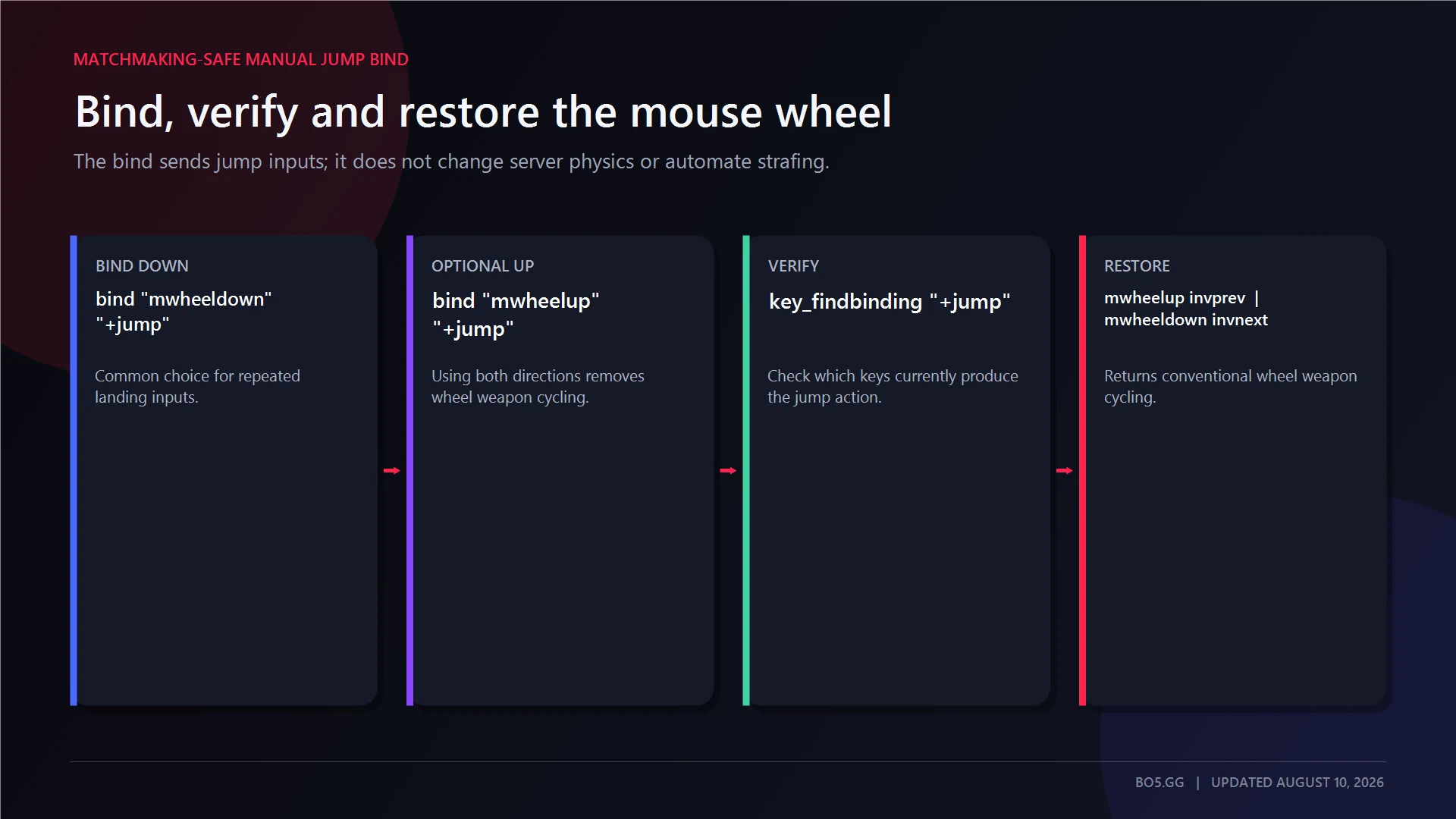
The scroll-wheel bind is a client-side keybind. It does not enable server auto-bhop, remove speed restrictions, or change movement physics.
Use one or both wheel directions:
bind "mwheeldown" "+jump"
bind "mwheelup" "+jump"
bind "space" "+jump"
Each line maps one physical input to one in-game action. That is the important safety boundary.
A plain +jump wheel bind is usable in Valve matchmaking. It gives you several manual jump inputs around a landing, which can make timing easier than pressing Space once.
It is not a macro, and it does not guarantee a successful hop.
Check the bind
Use:
key_findbinding "+jump"This shows which keys currently trigger +jump.
Restore normal wheel cycling
If you bind both wheel directions to Jump, you will no longer be able to switch weapons with the mouse wheel.
Restore conventional wheel cycling with:
bind "mwheelup" "invprev"
bind "mwheeldown" "invnext"
bind "space" "+jump"
Avoid using binddefaults just to restore the wheel. That command can reset more bindings than intended.
How to Actually Bunny Hop in CS2
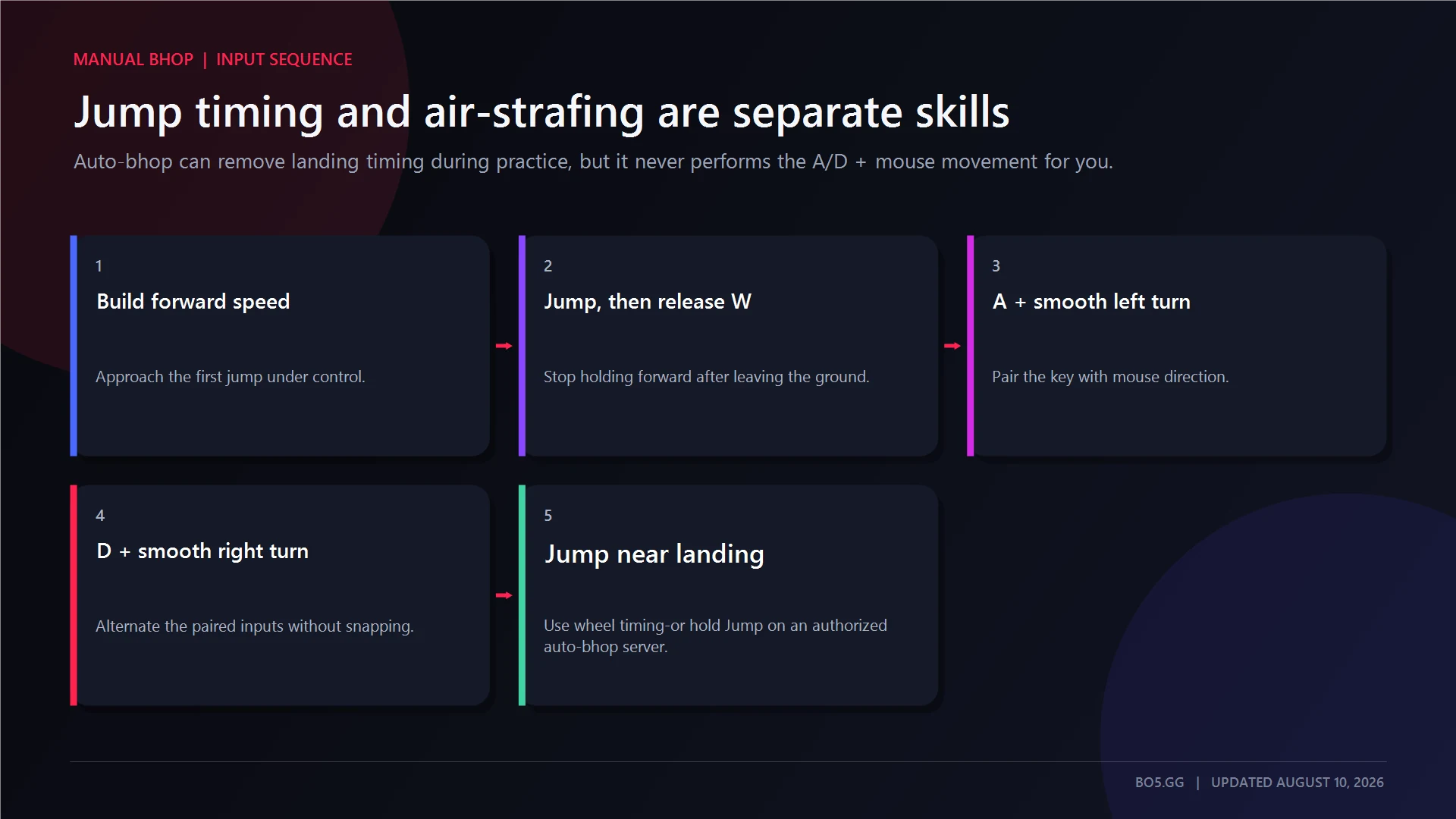
The server settings and wheel bind handle jumping. They do not perform the air-strafe for you.
- Build forward speed and jump.
- Release
Wafter leaving the ground. - Hold
Awhile turning the mouse smoothly left. - Hold
Dwhile turning the mouse smoothly right. - Alternate the paired inputs without sudden mouse corrections.
- Jump again near landing, or keep Jump held when auto-bhop is enabled.
Do not continue holding W through every airborne turn. Forward input can fight the sideways movement needed for effective air-strafing.
Use cl_showpos 1 on your practice server to watch whether velocity survives multiple landings. Consistency across several hops matters more than one unusually high number.
For longer air-control drills, CS2 surf servers focus on ramp movement, while CS2 KZ servers focus on precision movement and climbing.
Does Bhop Work in Competitive CS2?
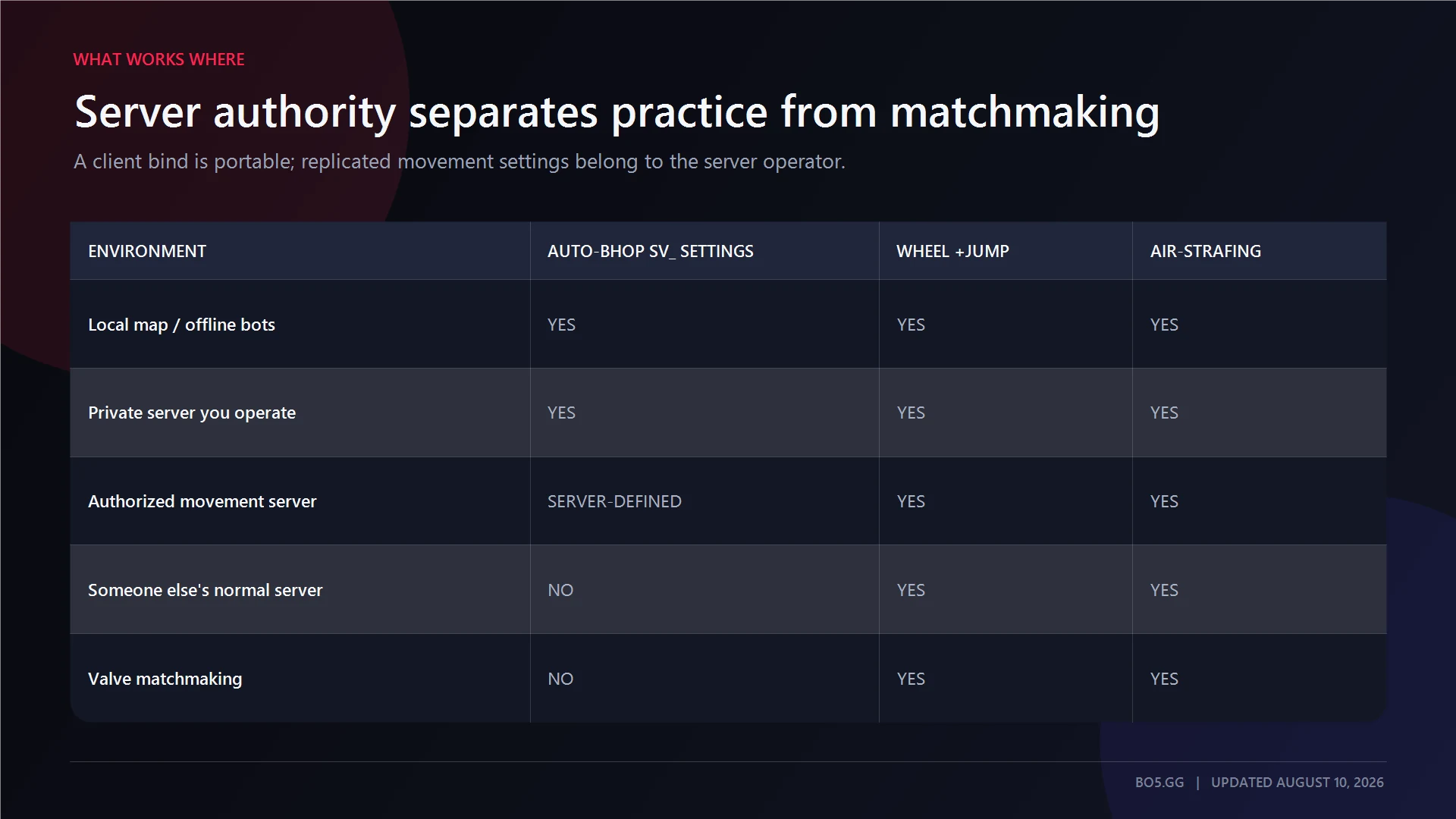
Manual bunny hopping is possible in competitive play. The server-controlled auto-bhop settings in this guide are not available to ordinary players on Valve matchmaking servers.
Under default server physics:
sv_autobunnyhoppingis disabled.sv_enablebunnyhoppingis disabled.sv_airaccelerateuses the standard value of12.- Landing rules limit reliable, indefinite speed gain.
The matchmaking-safe wheel bind can help you submit manual jump inputs. It does not reproduce the movement of a dedicated bhop server.
In real matches, a well-timed hop can help you preserve momentum through a route or around a corner. It is not a dependable way to accelerate continuously.
How to Turn Bhop Off and Restore Defaults
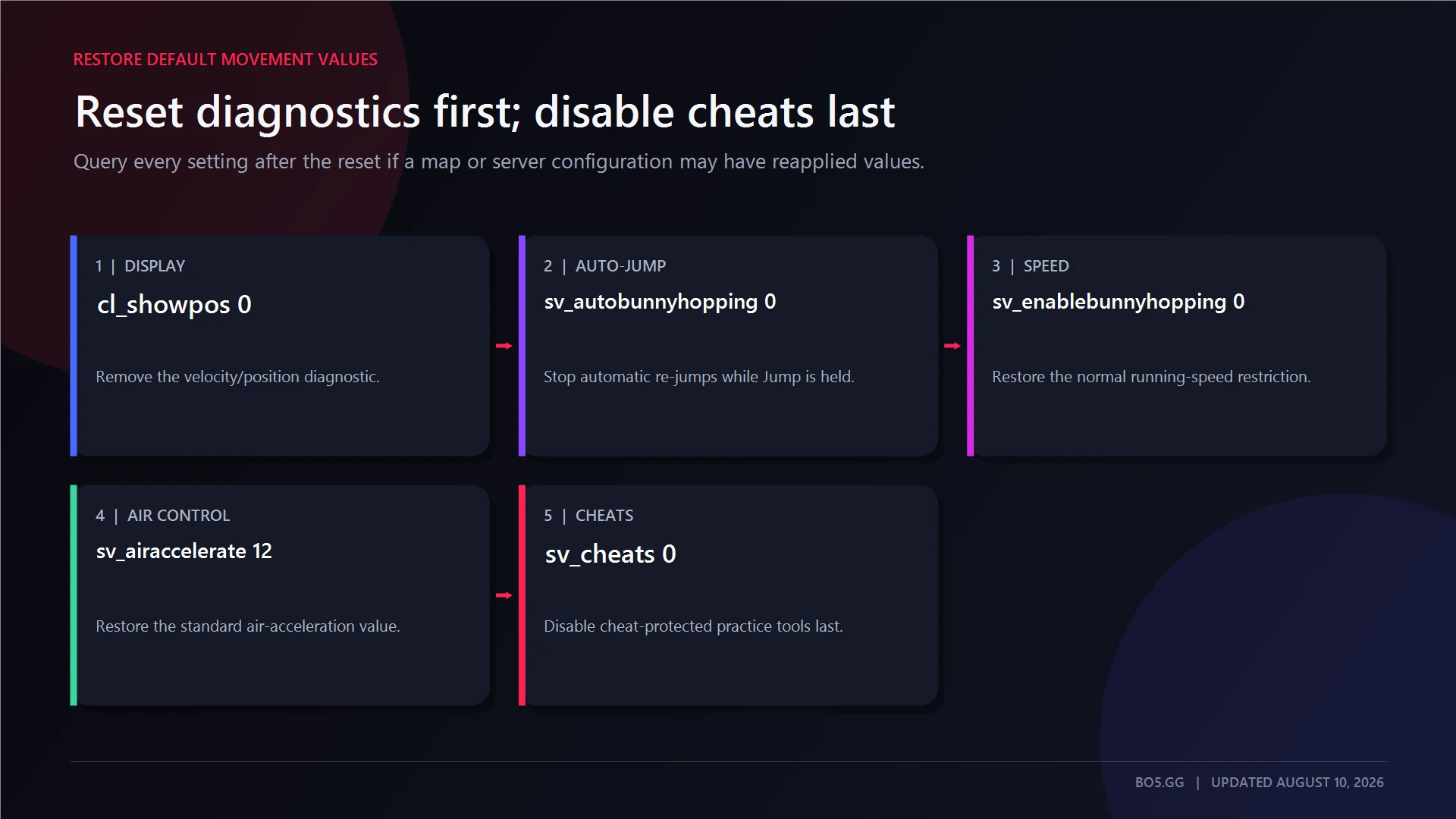
Reset the diagnostic display first. Restore the movement values next, restart only if needed, and disable cheats last:
cl_showpos 0
sv_autobunnyhopping 0
sv_enablebunnyhopping 0
sv_airaccelerate 12
sv_air_max_wishspeed 30
sv_maxvelocity 3500
sv_friction 5.2
mp_restartgame 1
sv_cheats 0
If you enabled legacy mode, insert this block before mp_restartgame 1:
sv_legacy_jump 0
sv_staminajumpcost 0.08
sv_staminalandcost 0.05
sv_staminamax 80
sv_staminarecoveryrate 60
If sv_legacy_jump is unavailable in the current build, omit that line.
The mouse-wheel bind is independent of the server reset. Restore weapon cycling separately:
bind "mwheelup" "invprev"
bind "mwheeldown" "invnext"
bind "space" "+jump"
After resetting, query the changed settings again. A map or server configuration may reapply its own values during a restart.
Built-In Practice Commands vs Forbidden Automation
The server settings in this guide apply only to a local or private server you control. The wheel bind is a separate client-side bind.
Do not use:
- External bunny-hop scripts.
- Software or hardware macros.
- Repeating or timed jump automation.
- Injected movement tools.
- Multi-action aliases designed to automate movement.
- Anti-cheat interference or bypasses.
The distinction is simple: one input mapped to +jump is a normal bind. A tool or macro that generates movement inputs for you is automation and is outside this guide.
FAQs
Why is my CS2 bhop command not working?
First check whether you control the server. The sv_ values cannot override Valve matchmaking or another operator’s community server.
Next, query sv_enablebunnyhopping and sv_autobunnyhopping to confirm their reported values. If your local mode rejects them, enable sv_cheats 1 and try again.
A map configuration may also overwrite the values after loading. Run the setup after the map has started. For server-controlled movement without changing your own configuration, browse CS2 bhop servers.
Can you get banned for using bhop commands in CS2?
Built-in server settings on a local or private server you control are separate from external cheating software. A normal one-action mouse-wheel +jump bind is also a standard client keybind.
Do not use scripts, software or hardware macros, injected tools, or automated movement systems in Valve matchmaking or third-party competitive play.
Is bunny hopping still possible in CS2?
Yes. Manual bunny hopping remains possible, while private and community servers can enable automatic re-jumping and custom movement values.
Official servers retain their default movement restrictions, so they behave differently from dedicated bhop servers.
How do I disable auto-bhop?
Set both core values back to 0:
sv_autobunnyhopping 0
sv_enablebunnyhopping 0
Restore sv_airaccelerate 12 if you changed air control, turn off cl_showpos, and disable sv_cheats last.
Do I need auto-bhop to learn bunny hopping?
No. Auto-bhop is a practice aid.
It removes the need to time each landing input, allowing you to focus on air-strafing. Once your mouse and keyboard rhythm is consistent, disable it and practise manual wheel or Space inputs.
Practise on a CS2 Bhop Server
Local settings are best for understanding what each command changes. Community servers add purpose-built maps, timers, checkpoints, rankings, and server-specific movement values.
Browse BO5’s CS2 bhop server directory to find movement servers, or return to the BO5 CS2 hub for matches, teams, rankings, and more CS2 guides.
Written by

Muhib Nadeem
11 published articles
CS2 writer and BO5 editor covering Counter-Strike guides, rankings, skins, and performance fixes.
Recommended posts
August 9, 2026
Best CS2 Settings for FPS and Lower Input Lag
Choose CS2 settings for your hardware and display, separate lowest latency from tear-free VRR, preserve competitive visibility, and benchmark every change.
August 9, 2026
CS2 Viewmodel Settings: Every Command, FOV and Pro Config
Configure your CS2 viewmodel with current commands, defaults, practical presets and dated pro snapshots—without confusing weapon FOV with camera FOV or FPS.
August 9, 2026
CS2 Wallhack Command: See Through Walls With sv_cheats
The old CS:GO wallhack command no longer works in Source 2. Learn how current targeted CS2 debug overlays work, where sv_cheats is allowed, and how demo x-ray differs.