
 Counter-Strike 2
 Valorant
 Dota 2
 League of Legends
“VAC was unable to verify your game session” is not itself a VAC ban. First, check Steam and Counter-Strike service health. Second, fully exit Steam and restart your device. Third, reopen Steam online, launch CS2 through the Library with default options, and verify its files if the error remains. Stop after one successful secure connection.
Support paths checked 30 August 2026. The ordered fixes below are source-verified, but this production pass did not reproduce the error in a current local client. Forced-Proton behavior is identified separately as platform-report evidence.
Is the VAC Verification Error a Ban?
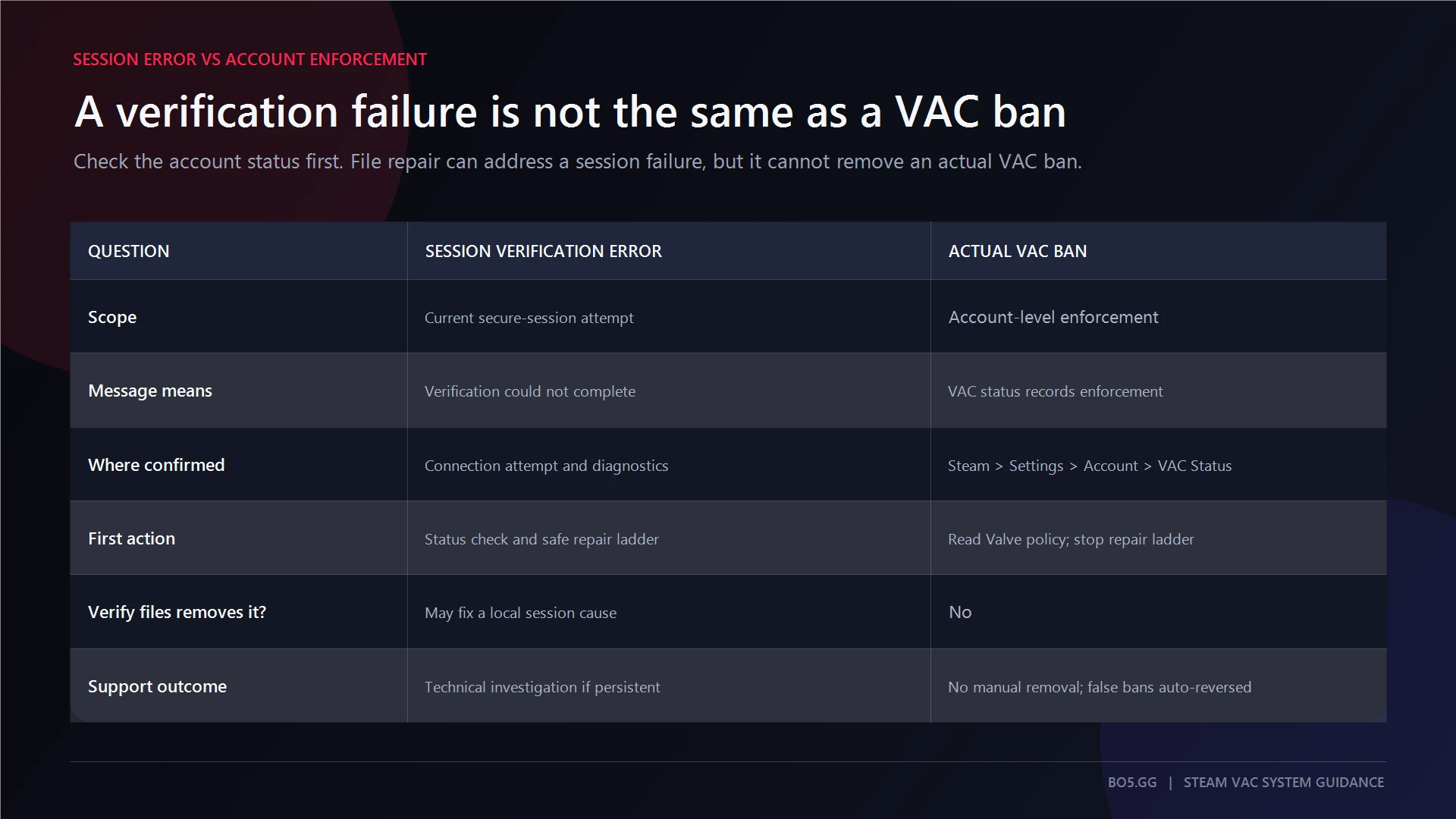
No. Valve Anti-Cheat, or VAC, could not complete the verification check required for the current VAC-secured session. The message itself does not expose the exact cause, prove that Steam detected cheating, or place a penalty on your account. You may also see “VAC was unable to verify the game session,” which describes the same type of failure.
Check the separate account status:
Steam > Settings > Account > VAC Status > Click here for details
If no ban appears, continue below. If Steam shows an actual VAC or game ban, stop local troubleshooting. Restarting Steam, verifying files, or repairing the client will not remove account-level enforcement. If the account page and in-game message conflict, capture both screens and contact Steam Support.
How to Fix “VAC Was Unable to Verify Your Game Session,” in Order
Test one low-stakes VAC-secured Valve mode after each step. Avoid Premier or Competitive for the first test. Stop as soon as one secure connection works. Stacking changes hides the cause and can create another problem.
1. Rule Out a Steam or Counter-Strike Service Problem
What this checks: Whether the failure is broader than your PC. Confirm Steam is online, then test the Store, Friends, and Downloads. You can also check whether CS2 is down, but treat third-party status pages as practical signals rather than official Valve confirmation.
Restart: No.
Stop or escalate: If several Steam services or many players are affected, stop local repairs and retest after recovery. If the account status and game message conflict, contact Steam Support. If only this device is affected, continue.
2. Fully Exit Steam, Restart the Device, and Launch Through the Library
Exit CS2, choose Steam > Exit, and confirm the Steam tray icon has disappeared.
On Windows, use Start > Power > Restart. On Linux, use your desktop’s normal restart command. On Steam Deck, press the Steam button and choose Power > Restart.
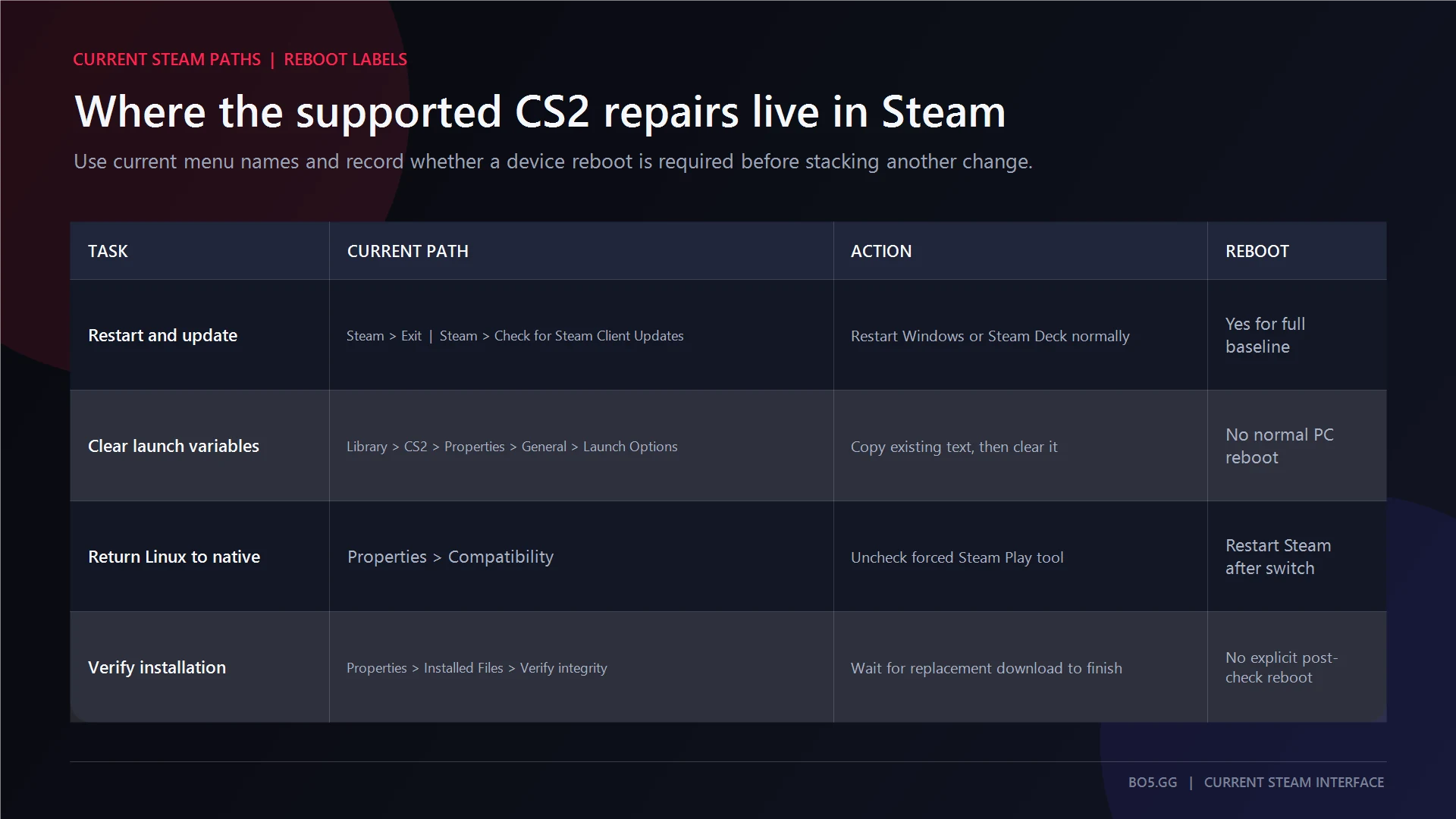
After rebooting, open Steam online, use Steam > Check for Steam Client Updates, then start through Library > Counter-Strike 2 > Play.
What this checks: Stale client state, locked files, resident processes, or an incomplete client update.
Restart: Yes.
Stop or escalate: Stop after one secure session works. If the error returns immediately, continue to the clean-launch step rather than repeating restarts.
3. Return CS2 to a Clean Launch State
Open Library > Counter-Strike 2 > Properties > General > Launch Options. Copy or screenshot the existing text, clear the field, and launch again. After CS2 works, you can review your CS2 launch options and restore only necessary options, one at a time.
Do not add -insecure, -allow_third_party_software, or anything claiming to relax or bypass VAC.
On Linux or Steam Deck, open Properties > Compatibility and uncheck Force the use of a specific Steam Play compatibility tool. CS2 has an official native Linux build, so forced Proton is not the preferred repair path.
What this checks: Custom launch commands, changed trust behavior, or a manually forced compatibility layer.
Restart: No device reboot for launch options. Restart Steam after switching to the native build; reboot only if Steam does not complete the switch.
Stop or escalate: If the clean launch works, reintroduce optional settings individually. If native Linux still fails after an update, capture system information instead of cycling through Proton versions.
4. Verify the CS2 Installation
Use the current Steam route:
- Open Library.
- Right-click Counter-Strike 2 or select its gear icon.
- Choose Properties > Installed Files.
- Select Verify integrity of game files.
- Let verification and any download finish.
- Launch CS2 through Steam.
“Installed Files” is current. Guides using “Local Files” show an older Steam interface.
What this checks: Missing, changed, damaged, or quarantined installation content.
Restart: Steam does not state that a separate PC reboot is required after verification.
Stop or escalate: Stop after a successful connection. One file failing verification does not automatically prove corruption, because some local configuration content may not be replaced. If the error remains, continue to the symptom-matched branch instead of repeatedly verifying.
5. Follow Only the Branch That Matches Your Symptoms
Do not run every branch.
If the error followed a failed update, use Steam > Settings > Downloads > Clear Download Cache. Steam signs you out, so have your credentials available. Sign back in, verify CS2, and test.
If security software recorded a matching event, compare its timestamp and file path. Restore only a confirmed genuine Steam or CS2 file, then verify the game. Never disable protection globally or exclude an entire drive.
If another game’s anti-cheat or low-level monitoring tool is still running, close it fully. Steam documents competing anti-cheat and background software as conflict categories, but the message does not prove a specific process interfered. Restart Windows only when a driver or service remains resident, then test with Steam and CS2 alone.
Steam recognizes third-party anti-cheat as a conflict category, but that does not prove every named product causes this error.
For an actual disk-write or library error, use Steam > Settings > Storage, select the drive, open the three-dot menu, and choose Repair Library or Repair Folder, depending on the client wording.
What this checks: A failed download, matching security event, resident low-level component, or storage-write problem.
Restart: Conditional, mainly to unload a resident driver or service.
Stop or escalate: Test after the one matching action. If no symptom matches, skip this rung. If one matched action fails, move to the next supported repair rather than stacking unrelated branches.
6. Repair the Steam Client Service on Windows
This is Windows-only and comes after restart, a clean launch, verification, and relevant conflict checks.
Exit Steam, press Win+R, and run:
"C:Program Files (x86)SteambinSteamService.exe" /repair
Approve the administrator prompt, wait for completion, and reopen Steam. Adjust the path only if Steam is installed elsewhere.
What this checks: Whether Valve’s documented Windows Steam Client Service repair resolves the secure-server failure.
Restart: Relaunch Steam. Valve’s current procedure does not state that a Windows reboot is required afterward.
Stop or escalate: Stop after a successful connection. If it fails, move to the in-place Steam repair. Do not continue into service ACL, registry, or security-descriptor edits.
7. Repair Steam in Place, Then Use Windows System Repair Only When Justified
Run the official Steam installer into the same existing Steam installation location. This repairs client components without an initial uninstall. Do not uninstall Steam first, because a normal uninstall can remove installed games or local data.
Use sfc /scannow only when other Windows components are failing, damaged system files are suspected, or Steam Support directs it. Steam’s broader VAC procedure requires a restart after the scan.
What this checks: Steam client corruption, or wider Windows corruption when independent evidence exists.
Restart: Only if requested after Steam repair. Required after the documented sfc /scannow procedure.
Stop or escalate: If a clean, repaired client still fails, stop adding changes and contact Steam Support.
8. Escalate With Reproducible Evidence
Use Help > Steam Support > Counter-Strike 2. The later technical categories can vary by account, so no universal final button should be expected.
Record the message, date and time, Steam client build, CS2 update timing, verification result, platform, launch options, service-status check, matching security events, other anti-cheat state, and each repair result.
What this checks: Account-specific, service-side, or platform-specific state that local troubleshooting cannot establish.
Restart: No.
Stop or escalate: This is the handoff. Steam Support does not need your password or authentication code, and it does not manually remove genuine VAC bans.
What Changes on Windows, Linux, Steam Deck, and Proton?
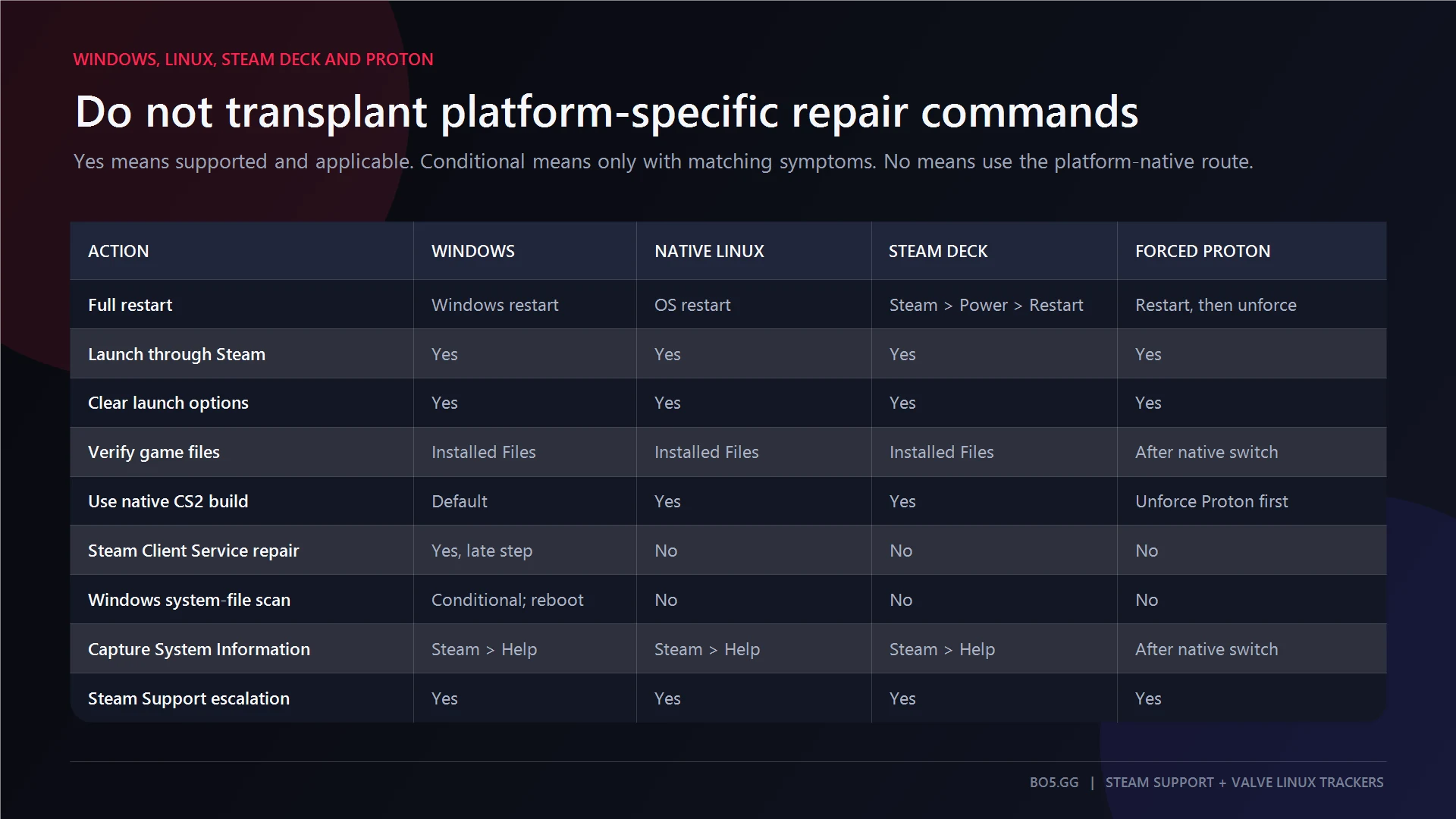
Restarting, using a clean Steam launch, and verifying files apply across supported platforms. The Steam Client Service command and sfc /scannow are Windows-only and must not be transplanted to Linux or SteamOS.
On native Linux, keep compatibility forcing off. If the error begins after a CS2 update while native is already selected, open Steam > Help > System Information, save the details, and escalate with a reproducible report.
Community observation: User reports in Valve-maintained issue trackers associate forced Proton with invalid-signature and VAC-session failures. This is occurrence evidence, not proof that every Proton setup fails or that Proton explains every Linux recurrence.
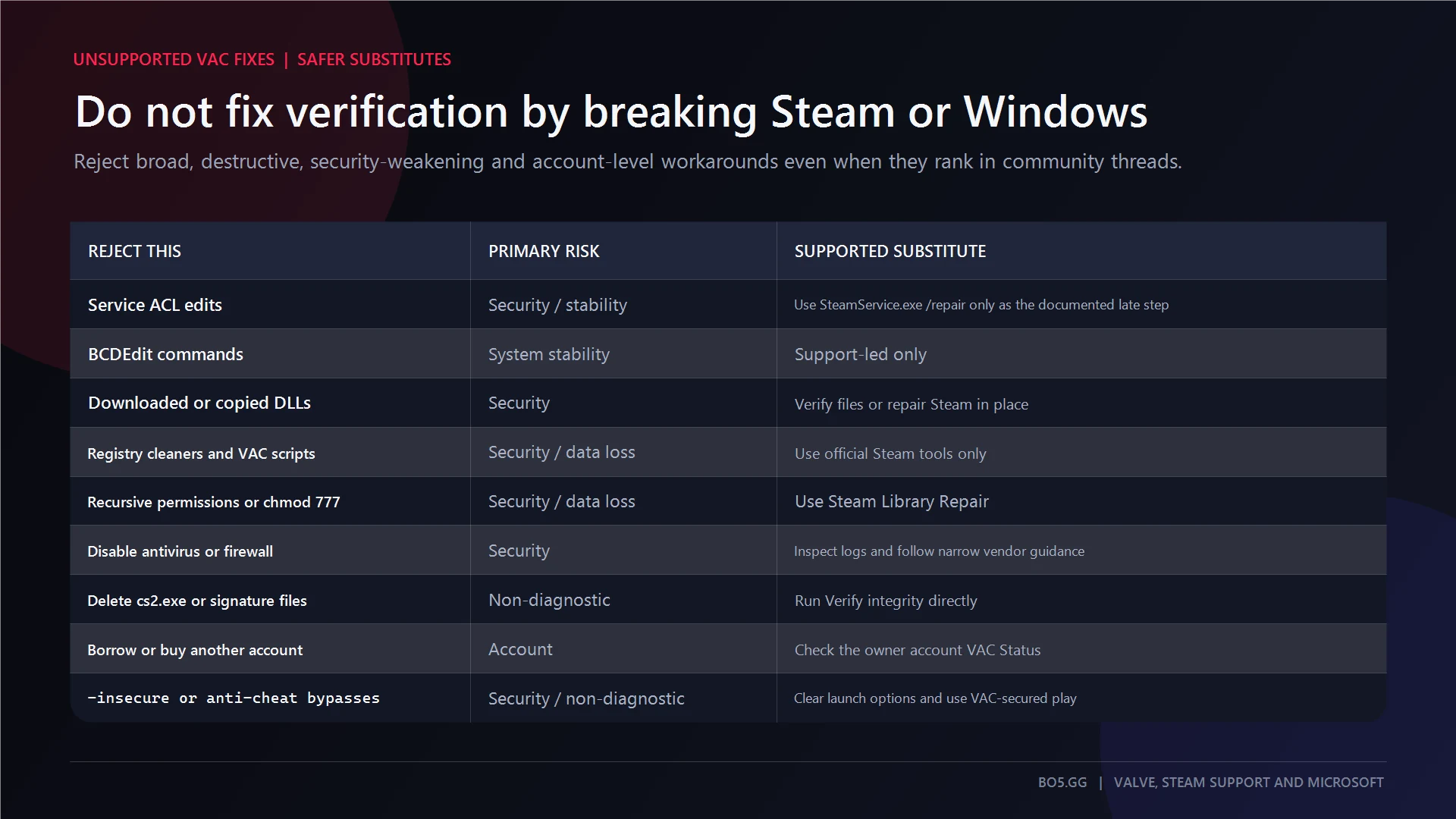
VAC Fixes You Should Not Try
Safety callout: Do not download or copy VAC or Steam DLLs, register random DLLs, edit the registry, change Secure Boot or other boot settings, rewrite service ACLs, run broad
takeown,icacls,chmod -R 777, or recursive ownership commands, use third-party “VAC fixers” or cleaners, disable security globally, or use anti-cheat bypasses.
Do not end svchost.exe, delete cs2.exe or signature files before verification, run Steam permanently as administrator, or reinstall Windows for this message. These actions are unsupported, non-diagnostic, or capable of damaging Windows, Steam permissions, account security, or the installation.
Use Steam’s verifier, library repair, documented service command, and official installer instead.
Why the VAC Verification Error Keeps Coming Back
A recurring error does not prove one cause. Timing and scope are more useful than repeating the same repair.
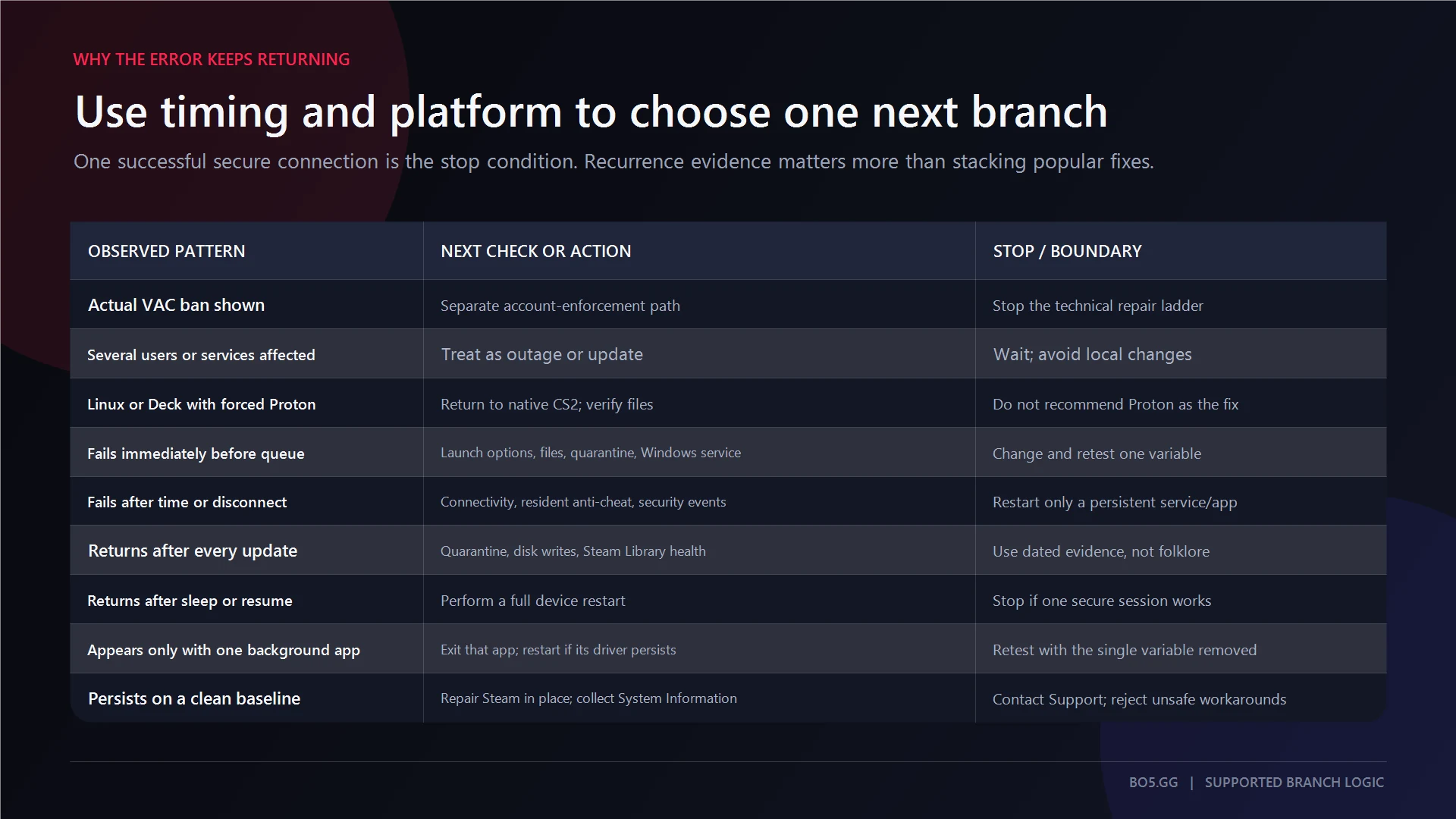
| Symptom | Next step |
|---|---|
| Once after a crash, sleep, or resume | Fully restart Steam and the device |
| Immediately before every secure queue | Clear launch options, verify files, inspect quarantine, then use the Windows service repair if applicable |
| Only while another launcher or anti-cheat runs | Close it, restart if its driver remains loaded, and test Steam plus CS2 alone |
| After every CS2 update | Check matching quarantine events, repeated downloads, free storage, and library-write errors |
| Store, Friends, Downloads, or other games also fail | Treat it as Steam-client or network scope, not a CS2-only file issue |
| Mid-session with disconnects or unstable networking | Check broader connectivity and diagnose CS2 net jitter without assuming jitter caused VAC verification |
| Every device for one account | Recheck VAC Status and escalate account-specifically |
| Several accounts on one PC | Focus on the local client, security software, service state, and installation |
For a clean-baseline test, run only Steam and CS2 with no custom launch options and no competing anti-cheat. If that works, reintroduce one optional program or setting per launch. The first change that reliably recreates the error becomes the investigation target. If the clean baseline fails after the supported ladder, contact Steam Support.
Frequently Asked Questions
Is “VAC Was Unable to Verify Your Game Session” a VAC Ban?
No. It means verification for the current secure session failed. Check Steam > Settings > Account > VAC Status for a separate account-level ban. A real VAC ban is not removed by restarting Steam, verifying CS2, or repairing the client.
How Do I Verify CS2 Files in the Current Steam Client?
Open Library, right-click Counter-Strike 2 or select its gear icon, choose Properties > Installed Files, and select Verify integrity of game files. Wait for any download to finish, then launch through Steam. A separate reboot is not normally required.
Why Does Steam Say One File Failed Verification?
Some games keep local configuration content that Steam does not replace during verification. One failed file therefore does not automatically mean CS2 remains corrupted. Check whether replacement content downloaded, launch through the Library, and test one low-stakes secure session before changing anything else.
Can Antivirus or Another Anti-Cheat Cause the Error?
They can interfere at category level, but the message does not identify a specific product. Check security logs for a matching file event and close another anti-cheat before testing. Do not disable protection globally, restore unidentified files, or treat a named-product blacklist as proof.
What Should Linux and Steam Deck Players Do?
Use CS2’s official native Linux build. In Properties > Compatibility, uncheck Force the use of a specific Steam Play compatibility tool, restart Steam, verify files, and test. On Steam Deck, use Steam button > Power > Restart. Escalate reproducible native-build regressions with System Information.
Get Back Into a Secure CS2 Session
Use one reversible step at a time, test once, and stop when a secure connection succeeds. If the error survives the clean baseline and supported repairs, preserve the evidence and hand the case to Steam Support instead of escalating into riskier system changes.
Sources and Verification
Support paths checked 30 August 2026. The account-status, verification, cache, service-repair, and support routes above were checked against current Steam and Valve material. The Storage repair label is more volatile and may appear as Repair Library or Repair Folder.
- Steam Support: Disconnected by VAC and Steam Client Service repair
- Steam Support: Verify integrity of game files
- Steam Support: Steam client troubleshooting
- Steam Support: Secure-server and third-party anti-cheat conflicts
- Steam Support: VAC status and VAC ban policy
- Counter-Strike 2 on Steam: native Windows and SteamOS/Linux support
- Microsoft Learn: BCDEdit,
icacls, andtakeown - Valve-maintained Linux issue report: forced Proton observation
Valve and Steam Support were treated as the primary authority; forum popularity was used only to identify symptoms and risky folklore. The two quoted error variants and the terminology used for verification, bans, and secure servers follow the supplied naming rules.
Written by

Muhib Nadeem
21 published articles
CS2 writer and BO5 editor covering Counter-Strike guides, rankings, skins, and performance fixes.
Recommended posts

August 30, 2026
FACEIT Ranks and Elo Explained: Every Level in CS2
Current FACEIT CS2 Elo thresholds, every skill level, Season 9 soft-reset rules, Challenger status, party modifiers, leavers, and Premier limits.
August 30, 2026
How to Start Private Matchmaking in CS2
Choose the correct CS2 private-play route, start a ten-human Private Matchmaking pool, preserve teams, and diagnose lobby or server failures safely.
August 30, 2026
How to Unlock Premier in CS2
CS2 Premier requires Prime Status and Profile Level 10 on the same account. This guide separates access, rating calibration, XP planning, and safe lock troubleshooting.