
 Counter-Strike 2
 Valorant
 Dota 2
 League of Legends
Quick answer
- Folder:
<SteamLibrary>steamappscommonCounter-Strike Global Offensivegamecsgocfg- Filename:
autoexec.cfg- Automatic load: Yes. CS2 normally executes a correctly named and placed
autoexec.cfgduring startup.+execwarning: You do not normally need+exec autoexec.cfg. Use it only as a fallback after troubleshooting, because it can execute an already working autoexec a second time.
Last verified: 30 August 2026
An autoexec is just a plain-text file containing console commands that CS2 applies at startup. The file itself is easy to create; most failures happen because it lands in an obsolete CS:GO folder or Steam's separate userdata directory.
Key Takeaways
- Put
autoexec.cfgin...Counter-Strike Global Offensivegamecsgocfg. - The folder is still named
Counter-Strike Global Offensive, even though the game is CS2. - A correctly placed autoexec loads automatically.
+exec autoexec.cfgis an optional fallback, not a standard requirement. - Start with diagnostic
echomarkers before adding binds or personal settings.
Where the CS2 Autoexec File Goes
The correct current path is:
<SteamLibrary>steamappscommonCounter-Strike Global Offensivegamecsgocfgautoexec.cfg
On a default Windows installation, that is usually:
C:Program Files (x86)SteamsteamappscommonCounter-Strike Global Offensivegamecsgocfgautoexec.cfg
Do not assume Steam lives on C:. CS2 may be in a Steam Library on D:, E:, or another drive.
The safest way to find the folder is:
- Open your Steam Library.
- Right-click Counter-Strike 2.
- Select Manage.
- Select Browse local files.
- Open
game, thencsgo, thencfg.
The parent folder still says Counter-Strike Global Offensive because CS2 replaced CS:GO inside the same Steam app. That name is expected, so do not rename the folder.
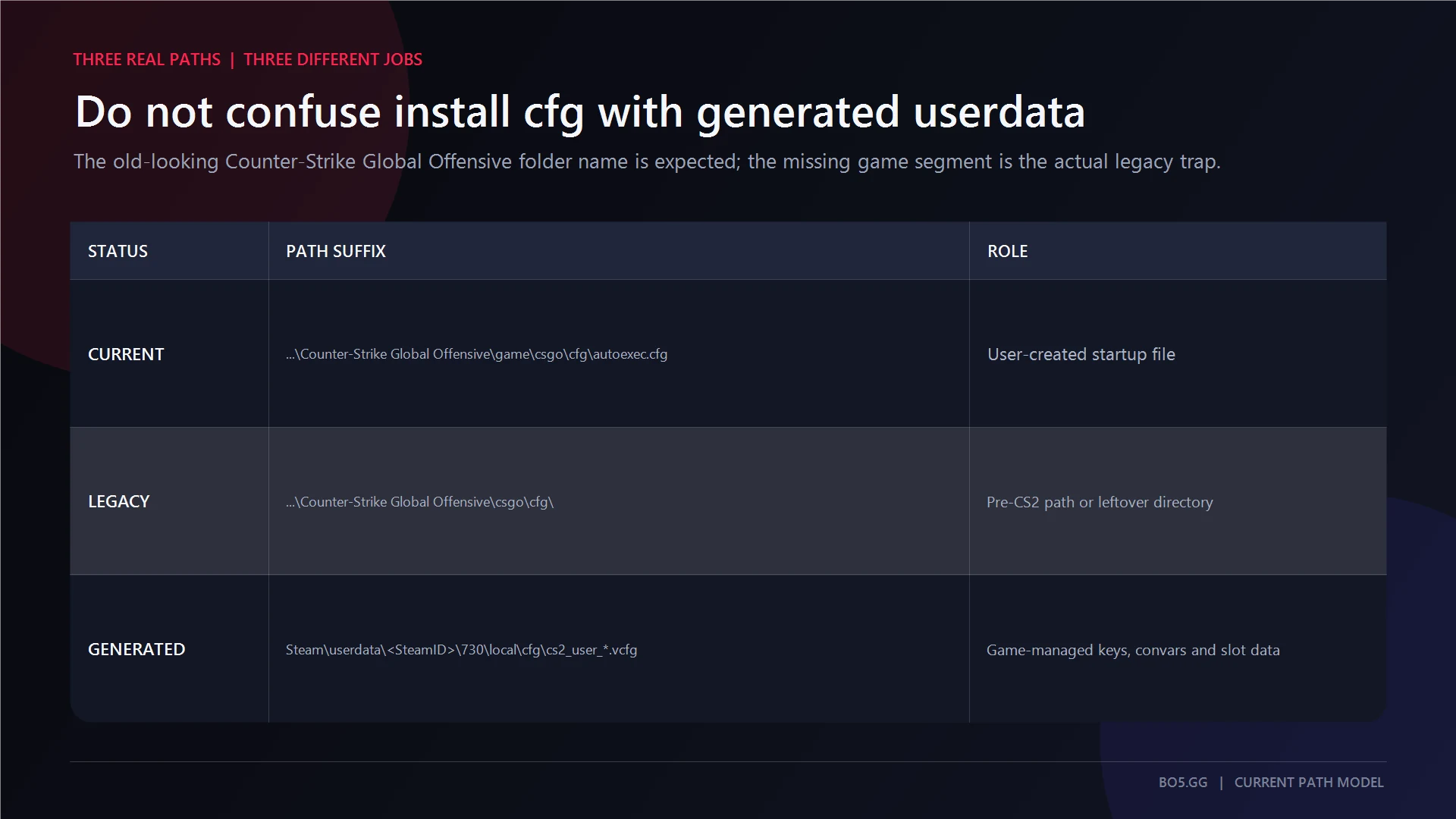
One more detail matters: the current path includes an extra game directory. Older CS:GO guides often point to ...Counter-Strike Global Offensivecsgocfg; that real-looking folder is no longer CS2's active CFG path.
| Location | Example | What It Is For |
|---|---|---|
| Current autoexec folder | ...Counter-Strike Global Offensivegamecsgocfg |
Put your authored autoexec.cfg here |
| Legacy CS:GO folder | ...Counter-Strike Global Offensivecsgocfg |
Obsolete path that may remain from CS:GO |
| Steam userdata folder | ...Steamuserdata<SteamID>730localcfg |
CS2-generated user settings and .vcfg files |
The install CFG and userdata CFG folders do different jobs. That split explains why otherwise credible guides can appear to contradict one another.
Keep autoexec.cfg out of userdata, and do not hand-edit generated .vcfg files as part of the normal setup.
How to Create autoexec.cfg on Windows
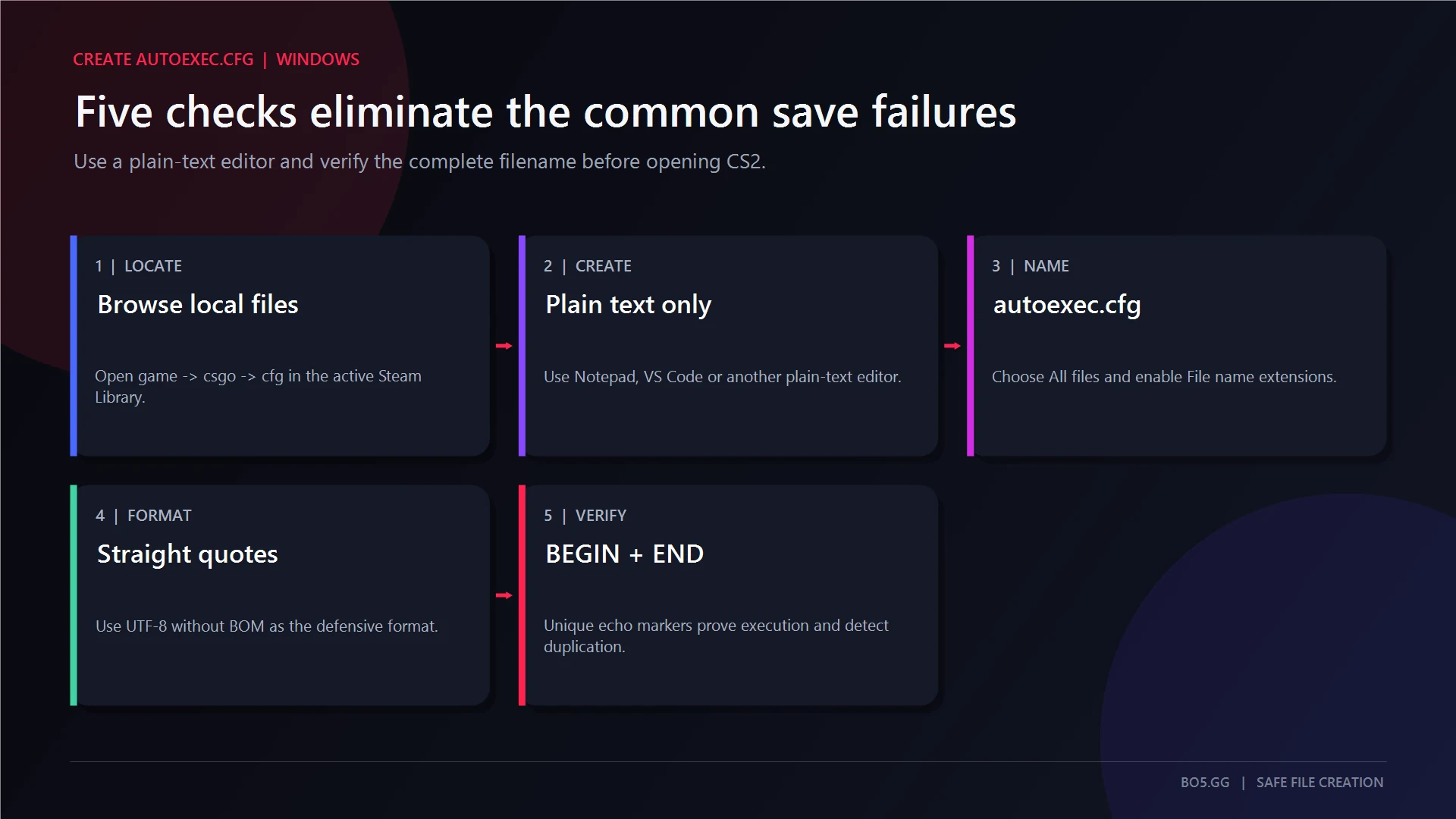
Use a plain-text editor such as Notepad or VS Code. Do not create the file in Microsoft Word, Google Docs, WordPad, or another rich-text editor.
1. Open the Correct CFG Folder
Use Steam’s Browse local files option, then navigate to:
gamecsgocfg
2. Create a Plain-Text File
Open Notepad and add the starter config from the next section.
Select File, then Save As.
Use these settings:
| Save Setting | Value |
|---|---|
| File name | autoexec.cfg |
| Save as type | All Files (*.*) |
| Encoding | UTF-8 |
| Destination | The current gamecsgocfg folder |
UTF-8 without BOM is the safest format when your editor exposes that choice. This is a compatibility precaution, not a claim that every BOM-encoded file will fail.
3. Check the Full File Extension
Windows may hide known extensions. A file displayed as autoexec.cfg can really be:
autoexec.cfg.txt
In File Explorer, enable View → Show → File name extensions. Confirm that the complete filename is exactly:
autoexec.cfg
4. Use Straight ASCII Quotes
Commands and binds should use ordinary straight quotation marks:
bind "mwheeldown" "+jump"
Do not use curly typographic quotes copied from formatted articles or word processors. They are different characters and can break command parsing.
Keep one command per line while building the file. Semicolon chains are harder to inspect and easier to break with an unmatched quote.
5. Handle Windows Permissions Safely
If your editor cannot save directly inside Program Files, save autoexec.cfg to your Desktop first. Then copy it into the CFG folder through File Explorer and approve the normal Windows permission prompt.
Do not disable User Account Control, change ownership of the Steam directory, or run unrelated applications as administrator just to create one text file.
A Safe CS2 Autoexec to Start From
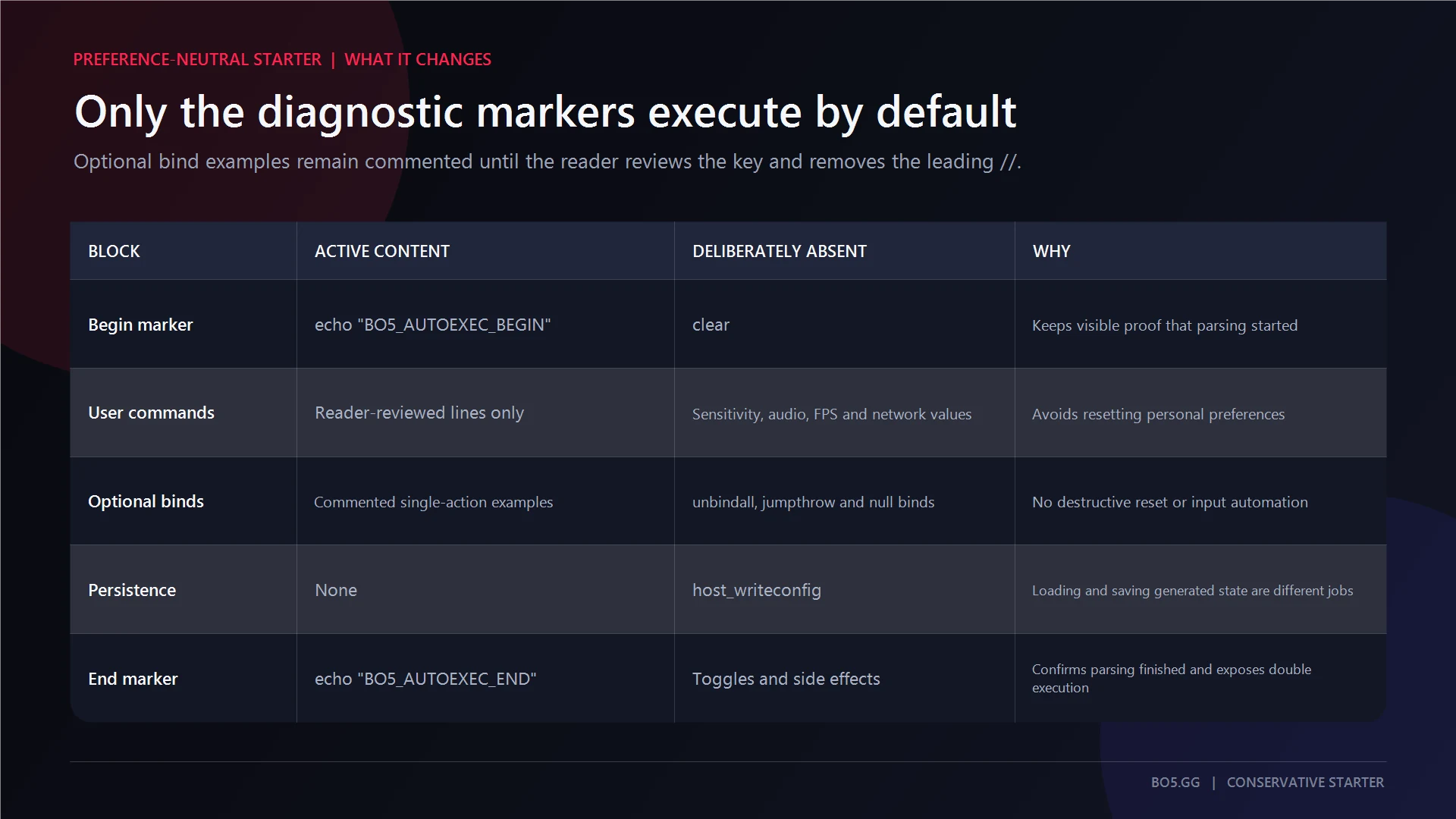
A starter autoexec should prove that the file loads without changing your sensitivity, crosshair, viewmodel, audio, network settings, FPS cap, or key layout.
Copy this block into autoexec.cfg:
// BO5.gg CS2 autoexec baseline
// Verified: 2026-08-30

echo "BO5_AUTOEXEC_BEGIN_2026_08_30"

// Add only commands you understand and have reviewed.
// Keep one command per line and use straight ASCII quotes.

// Optional: jump with mouse wheel down.
// Remove the leading // only after checking the existing wheel-down action.
// bind "mwheeldown" "+jump"

// Optional: direct grenade slots.
// Change the example keys before enabling these lines.
// bind "z" "slot6"
// bind "x" "slot7"
// bind "c" "slot8"
// bind "v" "slot10"

echo "BO5_AUTOEXEC_END_2026_08_30"
Want the file ready-made? Download the BO5 starter autoexec, unzip it, and inspect every line before copying it into your CFG folder. It contains the same preference-neutral baseline shown above.
Only the two echo lines are active. Everything beginning with // is a comment and does not execute.
The optional wheel bind is disabled by default because enabling it replaces whatever mouse-wheel-down currently does. It does not remove the Space jump bind by itself. For wheel up, wheel down, both directions, and restoring weapon cycling, use the dedicated mouse-wheel jump bind guide.
The grenade examples are also disabled. If enabled, slot6, slot7, slot8, and slot10 select grenade categories directly, but the example keys may already perform another action in your setup.
Do not add host_writeconfig or unbindall to this baseline.
How to Verify That the Autoexec Loaded
Enable the developer console in CS2, open it, and enter:
exec autoexec
If the file is readable, the console should print:
BO5_AUTOEXEC_BEGIN_2026_08_30
BO5_AUTOEXEC_END_2026_08_30
Restart CS2 and check the console again. The startup result tells you whether the file loaded automatically and how many times it ran.
| Marker Result | Meaning |
|---|---|
| Zero appearances | The file was not found, was not read, or has the wrong name or extension |
| One BEGIN and one END | Normal result. The autoexec loaded once and reached the final line |
| Two BEGIN and two END appearances | The file probably loaded automatically and then ran again through +exec autoexec.cfg |
| BEGIN appears but END does not | Inspect the lines between them for malformed quotes, pasted characters, or another parsing problem |
| Both markers appear but one setting fails | The file loaded, but that individual command may be invalid, obsolete, restricted, or overridden later |
An end marker confirms that CS2 reached the bottom of the file. It does not prove that every command above it was accepted.
Test questionable commands individually in the console before adding them permanently.
Does CS2 Run autoexec.cfg Automatically?
Yes. A file named autoexec.cfg in the current gamecsgocfg folder is part of CS2’s normal startup configuration sequence.
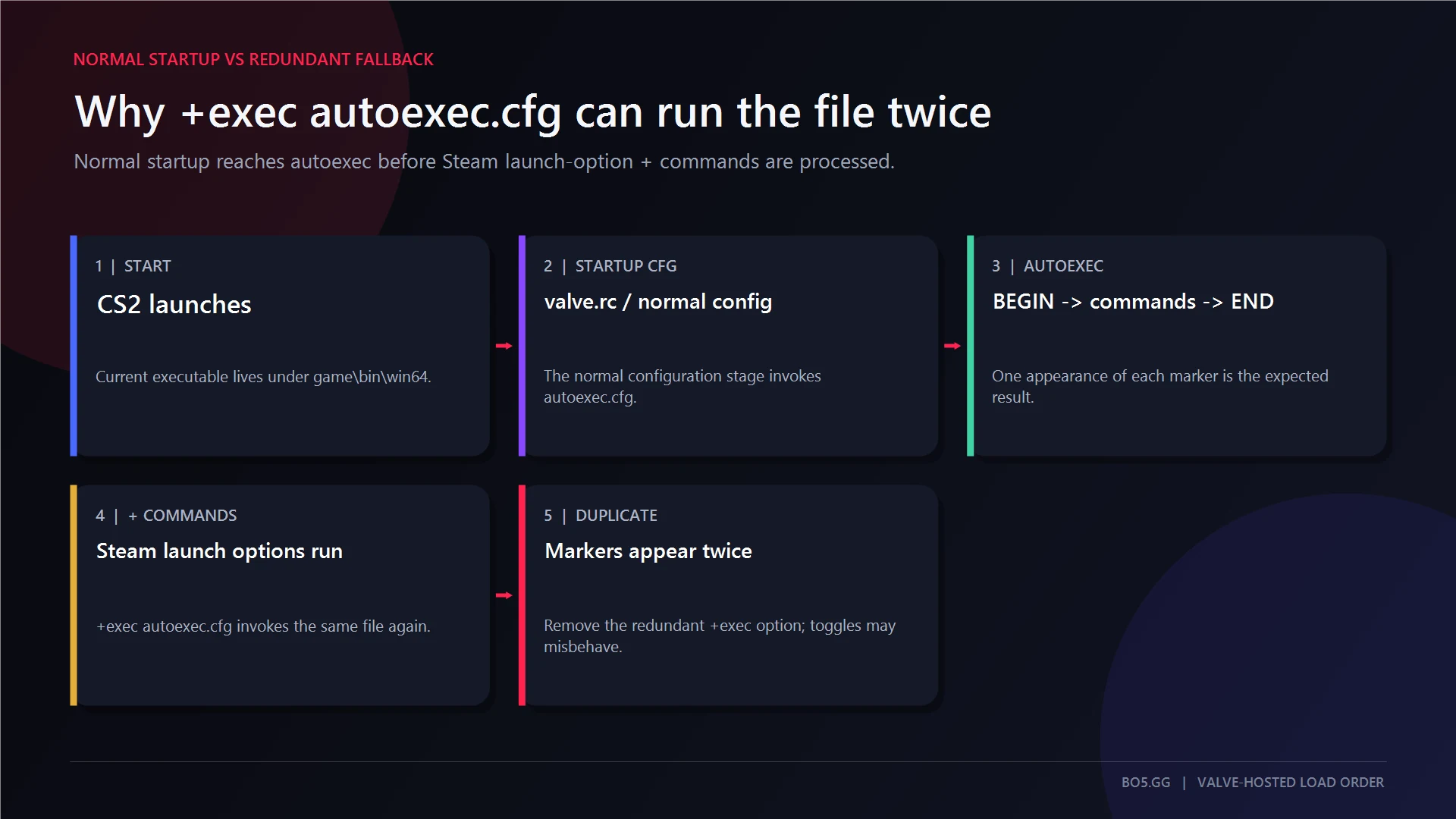
You do not normally need this Steam launch option:
+exec autoexec.cfg
Launch-option console commands are processed after the normal autoexec stage. Adding +exec autoexec.cfg to an already working setup therefore causes this sequence:
CS2 starts
    ↓
Normal startup configuration runs
    ↓
autoexec.cfg runs automatically
    ↓
Steam +commands are processed
    ↓
+exec autoexec.cfg runs the file again
Running the same direct assignment twice often changes nothing; setting one value twice usually leaves that value in place.
Other commands are not as harmless. Toggles can switch twice, increments can run twice, console messages can duplicate, and any command that triggers an action can fire again.
Use +exec autoexec.cfg only as a temporary fallback when all of these are true:
exec autoexecworks manually.- The full filename is correct.
- The file is in the active Steam installation.
- The markers still do not appear during normal startup.
- Conflicting or unnecessary launch options have been removed.
It does not repair a wrong folder, a hidden .txt extension, unreadable permissions, or damaged command syntax.
A differently named file is not the special automatic autoexec. For example, a private-server file named practice.cfg can be run manually with:
exec practice
What host_writeconfig Actually Does
host_writeconfig saves current user configuration values. It does not load autoexec.cfg, check its path, fix its filename, or make automatic execution more reliable.
The safe documented form is:
host_writeconfig
A conservative autoexec does not need it.
Current CS2 configuration involves three different layers:
| Layer | Typical Location | Purpose |
|---|---|---|
| Authored CFG | ...gamecsgocfgautoexec.cfg |
Commands you intentionally apply during startup |
| Generated user settings | ...userdata<SteamID>730localcfg*.vcfg |
Game-managed binds, convars, slots, and other user state |
| Steam-managed storage | Steam Remote Storage or Cloud-related state | Synchronization of supported generated settings |
Observed CS2 behavior associates host_writeconfig with generated user key and convar files, such as cs2_user_keys_*.vcfg and cs2_user_convars_*.vcfg.
That is different from saving or protecting your authored autoexec.cfg.
Do not rely on advice such as:
host_writeconfig myconfig
A filename argument has not been established as a dependable way to export a conventional named .cfg in current CS2.
Steam can synchronize supported user settings, but there is no verified basis for claiming that Steam Cloud directly backs up the install-folder autoexec. Keep your own copy somewhere outside the game directory.
If Your CS2 Autoexec Is Not Working
Start with reversible checks and move toward more disruptive fixes only when the evidence points there. Do not begin by deleting userdata, disabling Steam Cloud, or replacing your entire key layout.
| Symptom | Likely Cause | Least-Risk Check and Fix |
|---|---|---|
| No markers at startup | Wrong path, wrong name, hidden .txt, or unreadable file |
Use Browse local files, confirm gamecsgocfg, and show full extensions |
exec autoexec cannot find the file |
It is outside the active CFG folder | Move it into the CFG folder opened through Steam |
| Manual execution works, startup does not | Startup conflict or unusual loading issue | Reduce the file to the marker baseline, remove other launch options, then test the fallback |
| Markers appear twice | Automatic load plus +exec autoexec.cfg |
Remove the launch option and restart |
| BEGIN appears but END does not | Broken quoting, pasted formatting, or encoding problem | Comment out custom lines, use straight quotes, and resave as plain UTF-8 |
| Both markers appear but a command fails | Stale command, invalid value, restriction, or later override | Enter that command alone in the console and remove it if unsupported |
| Settings change again after startup | Another command, menu setting, launch argument, or generated user state writes later | Search for duplicate assignments and remove conflicting startup commands |
| Editor cannot save in the folder | Windows protected-folder permissions | Save elsewhere, then copy the file through Explorer |
| Old config produces many errors | It contains Source-era CS:GO commands | Migrate it line by line instead of copying the entire file |
| Controls stop working | Destructive bind block or unbindall |
Remove the block and restore individual controls through CS2 settings |
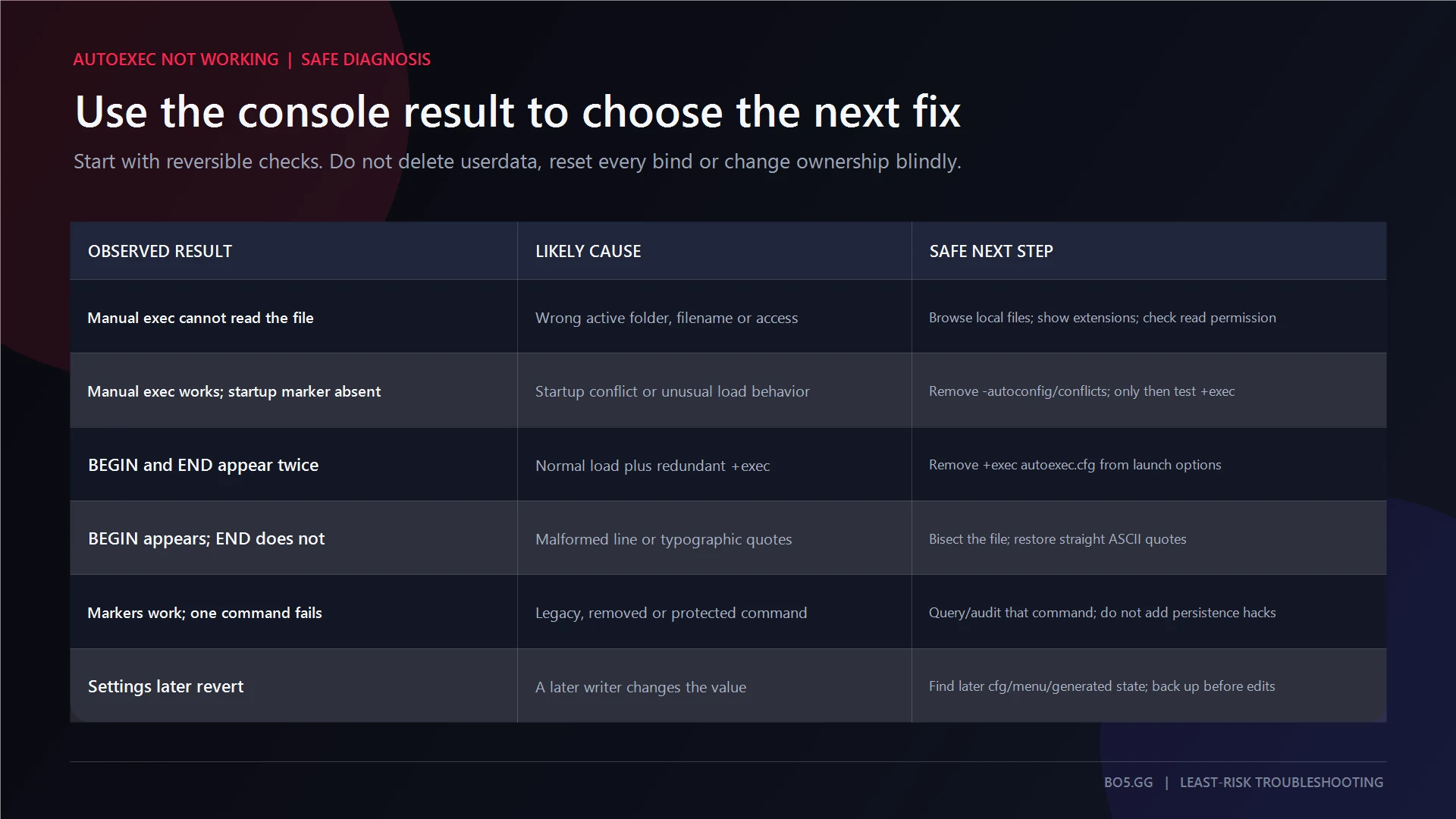
A good isolation process is:
- Return to the marker-only starter.
- Confirm one BEGIN and one END at startup.
- Add one small group of commands.
- Restart and verify again.
- Keep the group only if every line behaves as expected.
Migrating an Old CS:GO Autoexec
CS2 did not simply rename every CS:GO command. Some disappeared; others were replaced, restricted, or made unnecessary.
A file can load successfully while individual old lines do nothing.
| Old Line or Pattern | Current Treatment |
|---|---|
cl_cmdrate and cl_updaterate recipes |
Obsolete CS:GO networking advice. Remove them |
Hardcoded cl_interp or cl_interp_ratio formulas |
Do not carry them over as universal CS2 tuning |
net_graph 1 |
Legacy advice. Use current telemetry and CS2 network jitter guidance |
m_rawinput and m_customaccel* |
Old input commands that should not be copied into a current starter |
cl_righthand and old bob commands |
Replace with current CS2 viewmodel commands |
cl_forcepreload, mat_queue_mode, r_dynamic |
Do not use as generic Source 2 performance fixes |
| Jump-throw, run-throw, null, or multi-action aliases | Do not include. Valve restricts multi-action movement and attack automation |
unbindall |
Destructive. It removes all key bindings |
host_writeconfig as a mandatory final line |
Not required for autoexec execution |
fps_max 0 |
Current but personal. It removes the cap and is not a universal recommendation |
For hardware-dependent frame caps and graphics changes, use a dedicated CS2 settings for FPS guide instead of turning the autoexec page into a performance preset.
Safe Optional Additions
Once the marker-only baseline works, add personal settings in small, labelled modules.
Crosshair Commands
Generate or review the crosshair separately, then paste only the commands you want. The CS2 crosshair generator is a safer starting point than copying an entire player configuration.
Viewmodel Commands
Keep viewmodel lines together under a comment heading. Use current commands rather than old cl_righthand, bob, or viewmodel-shift lines.
Single-Action Binds
Ordinary one-key, one-action binds are appropriate when reviewed. Check what the key currently does before replacing it.
Avoid scripts that combine movement or attack actions into one input.
FPS Caps
An FPS cap is a hardware and latency choice, not an autoexec requirement. Add it only after deciding on a value for your system.
Practice Commands
Put private-server commands in a separate file:
practice.cfg
Run it only when needed:
exec practice
This prevents practice settings from running during every ordinary game launch.
What Not to Include
Do not put these in a general-purpose autoexec:
unbindallor a complete replacement control layout.- Jump-throw, run-throw, null, SOCD-style, or other multi-action input automation.
- Sensitivity copied from another player without understanding DPI and eDPI.
- Old CS:GO networking formulas presented as current optimization.
- Personal volume, crosshair, viewmodel, radar, or FPS values disguised as universal defaults.
- Private-server commands that should live in
practice.cfg. - Commands you cannot explain or verify individually.
host_writeconfigadded only because another config places it at the end.
How to Back Up and Roll Back Your Autoexec
Keep a copy of autoexec.cfg outside the CS2 installation directory. A simple date-stamped backup is enough:
autoexec-backup-2026-08-30.cfg
Do not assume every game update, reinstall, library move, or repair operation will preserve a custom file.
Before adding a large module:
- Copy the current working file.
- Add the new lines under a clear comment heading.
- Restart and check the markers.
- Test the changed behavior.
- Remove only that module if something breaks.
Do not delete the entire userdata730localcfg directory as an early troubleshooting step. Those files are game-managed user state, not disposable copies of your autoexec.
CS2 Autoexec FAQs
Can an Autoexec Get You VAC Banned in CS2?
A normal autoexec containing supported console commands and ordinary single-action binds is standard configuration behavior. The file itself is not a cheat.
That does not make every script acceptable. Valve restricts some forms of multi-action movement and attack automation, and suspected automated input can cause problems on official servers. Avoid jump-throw aliases, null binds, SOCD-style scripts, and unknown commands from untrusted downloads.
Why Is My CS2 Autoexec Not Working?
Start with the filename and folder. The file must be named exactly autoexec.cfg and placed in ...Counter-Strike Global Offensivegamecsgocfg.
Then enable file extensions and rule out autoexec.cfg.txt. Run exec autoexec manually and check the BEGIN and END markers. If the markers appear but a setting does not, troubleshoot that command rather than the entire file.
Where Does CS2 Store Its Own Settings?
CS2 stores game-managed settings under the Steam userdata structure, commonly inside:
Steamuserdata<SteamID>730localcfg
These generated .vcfg files are separate from the authored autoexec.cfg in the installation folder. Do not move the autoexec into userdata or edit generated files as the normal persistence method.
Do You Still Need +exec autoexec.cfg in Launch Options?
No. A correctly named and placed autoexec.cfg loads through the normal startup sequence.
Adding +exec autoexec.cfg runs it again after normal autoexec processing. Keep it only as a deliberate fallback when manual execution works but automatic startup loading still does not.
Can You Use a Pro Player’s Autoexec?
You can inspect a pro player's autoexec, but do not paste it blindly. It may contain old commands, personal sensitivity, hardware-specific FPS choices, audio changes, or binds that replace controls you rely on.
Copy only the parts you understand. Rebuild crosshair and viewmodel settings through current tools and guides rather than treating an old download as a complete preset.
Will My Autoexec Survive CS2 Updates?
The file may remain in place through ordinary updates, but the installation folder should never be your only copy.
Back it up separately. Check it after a reinstall, library move, major repair, or significant CS2 update, and keep the marker lines so you can verify startup execution without guessing.
Keep a Known-Good Baseline
The safest long-term setup is a small autoexec that is easy to prove and easy to undo.
Keep the BEGIN and END markers. Group related settings, add one module at a time, and store an external backup. If a future update removes or changes a command, you can isolate that block instead of rebuilding the entire configuration.
Sources and Verification
This guide was checked on 30 August 2026 against Valve's startup command documentation, exec reference, and current input-automation policy. Microsoft's file-extension guidance supports the Windows filename checks above.
Written by

Muhib Nadeem
21 published articles
CS2 writer and BO5 editor covering Counter-Strike guides, rankings, skins, and performance fixes.
Recommended posts

August 30, 2026
FACEIT Ranks and Elo Explained: Every Level in CS2
Current FACEIT CS2 Elo thresholds, every skill level, Season 9 soft-reset rules, Challenger status, party modifiers, leavers, and Premier limits.
August 30, 2026
How to Start Private Matchmaking in CS2
Choose the correct CS2 private-play route, start a ten-human Private Matchmaking pool, preserve teams, and diagnose lobby or server failures safely.

August 30, 2026
How to Unlock Premier in CS2
CS2 Premier requires Prime Status and Profile Level 10 on the same account. This guide separates access, rating calibration, XP planning, and safe lock troubleshooting.